Unity
Generate Unity skyboxes from a text prompt
Generate a seamless 360° sky from a text prompt and use it as your Unity skybox. 8K equirectangular PNG or EXR, pole-corrected, set up in minutes.
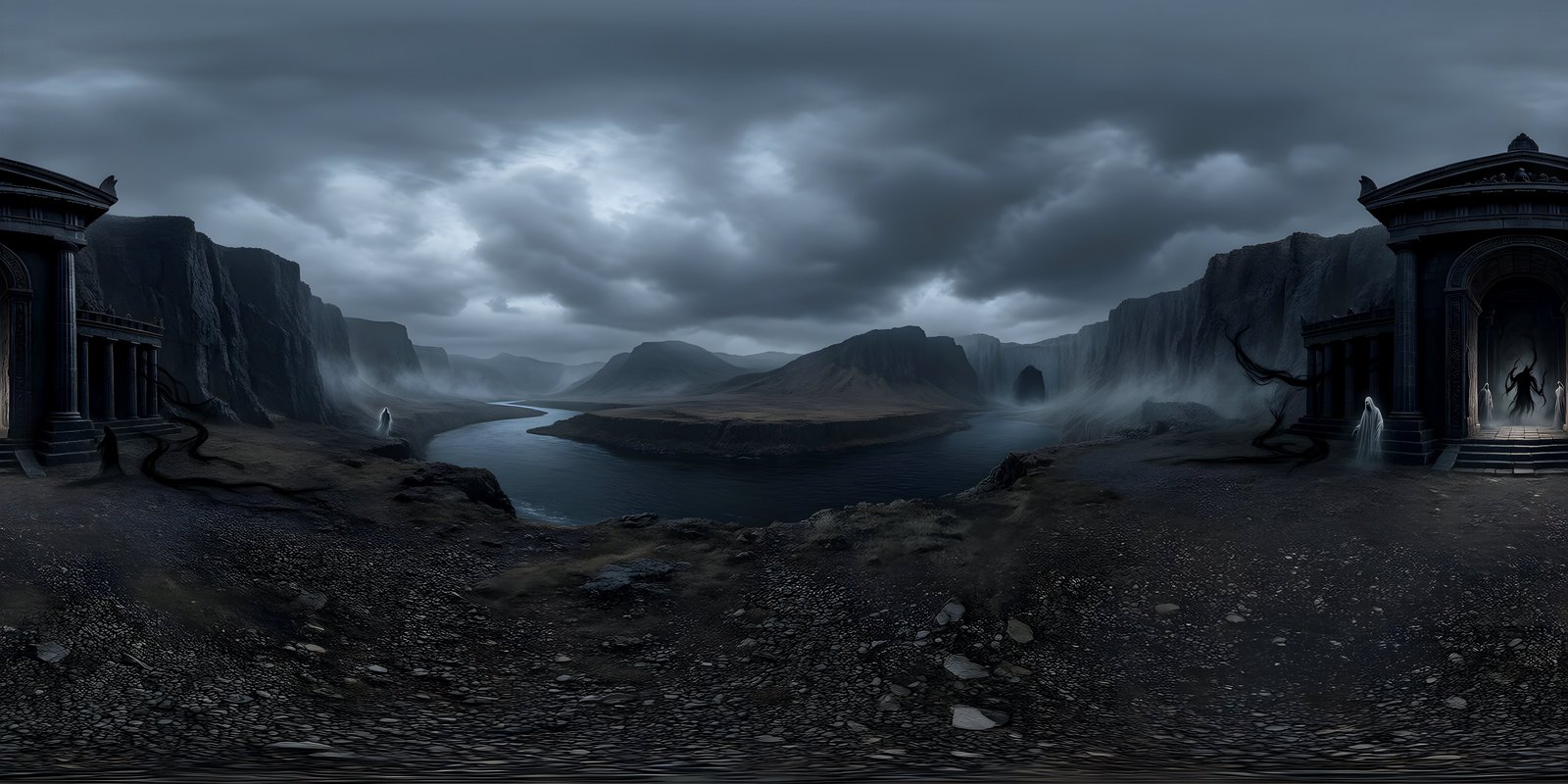
WorldGen360 is an AI skybox generator for Unity. Describe the sky and surroundings your level needs, and Studio generates a seamless 360° image you can set as your Unity skybox in a few minutes. Worlds export as 2:1 equirectangular PNG or EXR at up to 8192 × 4096, corrected at the poles so nothing pinches when the player looks straight up. Unity reads the image directly with its Panoramic skybox shader, or as a cubemap, in the Built-in, Universal and High Definition render pipelines.
Why generate a Unity skybox instead of buying one
There are three usual ways to get a skybox. Stock HDRI libraries are quick and physically accurate, but they are photographs of somewhere else, and a photographic sky rarely suits a stylised game. Painting or commissioning a sky gives you exactly what you want, but it takes days, and every revision costs more. General AI image tools are fast, but they make flat pictures, not seamless spheres.
Studio sits in between. The sky is built from your own description, in the style your game already uses, and it arrives as a complete sphere that wraps cleanly. If the first result is close but not quite right, change a few words and queue another.
What you get
- A single 2:1 equirectangular image at up to 8192 × 4096
- PNG for most real-time scenes, or EXR when you want extra dynamic range for lighting
- Corrected at the poles, so nothing pinches or seams when you look straight up or down
- Six visual styles – Photorealistic, Cinematic, Digital Painting, Oil Painting, Anime / Cel-Shaded and Stylised Low Poly – to match your art direction
- Layered prompts for the near field, the middle distance and the sky, and a No living creatures option for clean environment plates
Unity
A sky that belongs to your game
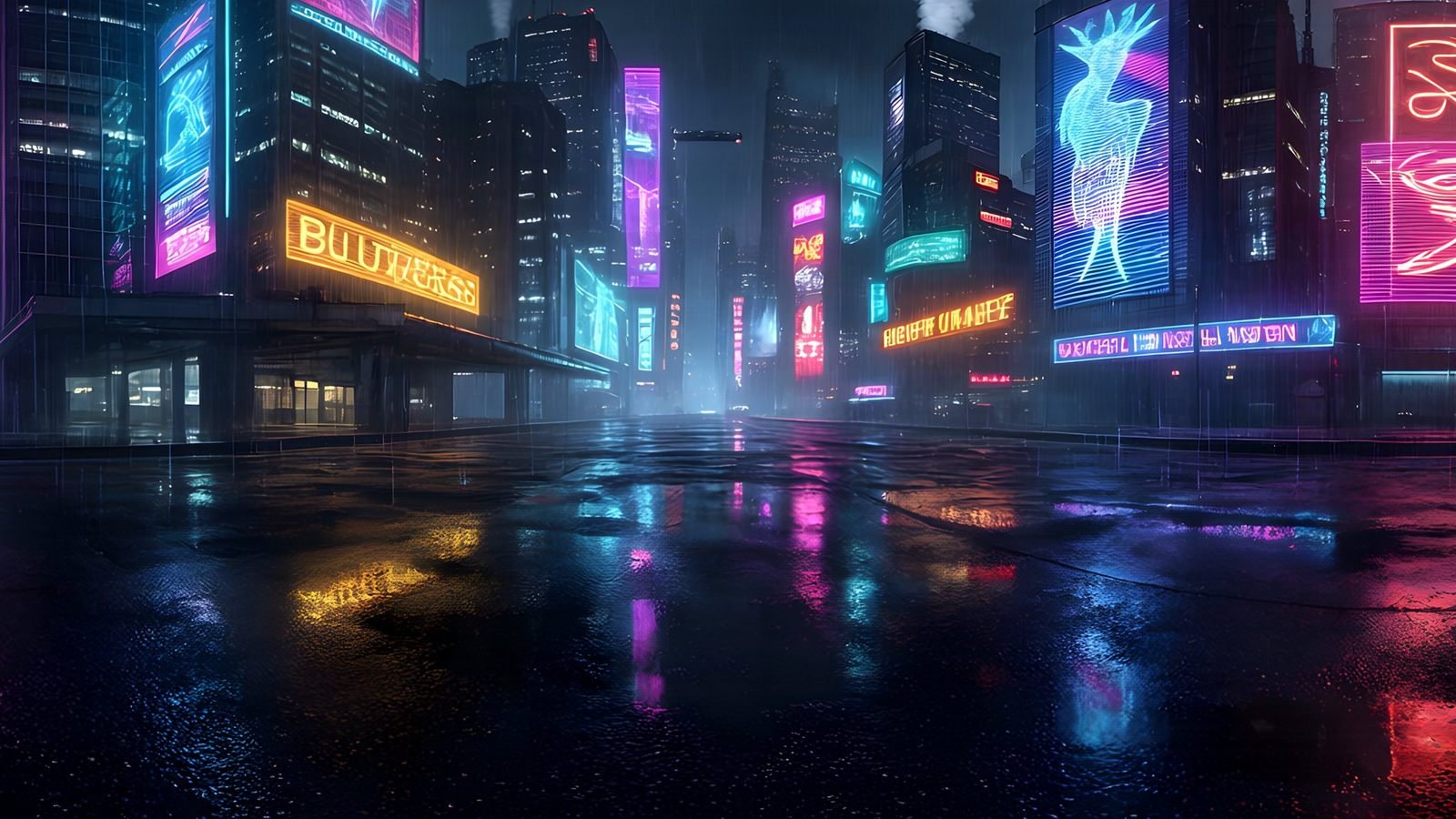
Describe the level - the city, the weather, the hour - and pick the style your art already uses. Remix the one that is close into dusk, rain or snow.
- Matches your palette and art style
- Seamless wrap, no visible join
- Ready for Skybox/Panoramic in minutes
How to set up a skybox in Unity
Both methods below work in the Built-in and Universal render pipelines. Method 1 is the quickest. Method 2 converts the image to a cubemap, which suits projects that already use cubemap skies.
Method 1: the Panoramic skybox shader
- Export the world from Studio as PNG or EXR and drop it into your
Assetsfolder. - Select the texture and, in its import settings, raise Max Size to 8192. Unity caps textures at 2048 by default, which throws away most of the detail.
- Create a material, set its shader to Skybox/Panoramic, set Mapping to Latitude Longitude Layout and assign the texture.
- Open Window › Rendering › Lighting, and on the Environment tab set the material as the Skybox Material.
- Leave Environment Lighting set to Skybox so the world lights the scene as well as sitting behind it.
Method 2: a cubemap
- Select the texture and set Texture Shape to Cube, with Mapping on Latitude-Longitude Layout (Cylindrical). Raise Max Size to 8192 and apply.
- Create a material with the Skybox/Cubemap shader and assign the cubemap.
- Set it as the Skybox Material in the Lighting window, as in method 1.
In HDRP
In the High Definition Render Pipeline the sky comes from a Volume. Import the texture with Texture Shape set to Cube, add an HDRI Sky override to a Volume in your scene and assign the cubemap, then set the Volume’s Visual Environment sky type to HDRI Sky.
Fixing common skybox problems
| Problem | Likely cause | Fix |
|---|---|---|
| The sky looks soft or blurry | Max Size left at 2048 | Raise Max Size to 8192 in the import settings |
| A thin line runs down one side | Mipmaps sampling across the wrap | Turn off Generate Mip Maps for the sky texture |
| Banding in a smooth sky | Heavy texture compression | Use higher-quality compression, or none, for the sky |
| Lighting does not match the sky | Environment lighting not taken from the skybox | Set the Environment Lighting source to Skybox and regenerate lighting |
| The sun is on the wrong side | The sky faces the wrong way | Turn it with the material’s Rotation property |
For resolution, texture memory and lighting in more depth, read the complete guide to game skyboxes.
Match the world to the game
Use layered prompts to put detail in the near field, the middle distance or the sky, keep living creatures out for a clean plate, and paint out anything that does not belong with the magic eraser, which works on the sphere rather than a flat crop. A sky with detail on the horizon holds up best in a game, because nothing in a 360° image moves as the player walks; anything the player can approach belongs in the level as real geometry.
Skyboxes for different kinds of Unity game
- First and third person: the player can look anywhere, so the whole sphere is on screen at some point. Export at 8192 × 4096 and stage the detail far away, on the horizon.
- Top-down and isometric: the camera rarely sees the sky itself. Its main job is ambient light and reflections, so 4096 × 2048 is often plenty, and EXR gives reflections more range.
- Mobile: texture memory is tight. Build with a 4096 × 2048 copy, compressed, and keep the 8K original for later.
- VR: the sky fills the headset at close range, so 8K matters most here. See VR environments for resolution, comfort and performance.
Frequently asked questions
How do I use a 360° image as a skybox in Unity?
Import the image, raise its Max Size to 8192, and create a material with the Skybox/Panoramic shader set to Latitude Longitude Layout. Assign that material as the Skybox Material in Window › Rendering › Lighting.
What resolution should a Unity skybox be?
8192 × 4096 keeps a sky sharp across a wide desktop or console view. On mobile, 4096 × 2048 is usually enough and uses a quarter of the memory. Generate at 8K and downscale for platforms that need less.
Should I use the Panoramic or the Cubemap skybox shader?
Both give a good result from the same image. Panoramic is the quickest to set up; Cubemap suits projects that already use cubemap skies or want the sky in the same form as other environment assets.
Does a generated skybox work in URP and HDRP?
Yes. In URP use either method above. In HDRP, import the image as a cube texture and use it in an HDRI Sky override on a Volume.
Why is there a line down my skybox?
It is usually mipmapping sampling across the point where the image wraps. Turn off Generate Mip Maps in the sky texture’s import settings and the line disappears.
Use cases
More ways to use a 360° world
 Virtual reality
Generate VR environments from a text prompt
Create immersive 360° VR environments from a text prompt: 8K, pole-corrected worlds for Quest, WebXR, Unity and Unreal, with no seams up or down.
Explore
Virtual reality
Generate VR environments from a text prompt
Create immersive 360° VR environments from a text prompt: 8K, pole-corrected worlds for Quest, WebXR, Unity and Unreal, with no seams up or down.
Explore
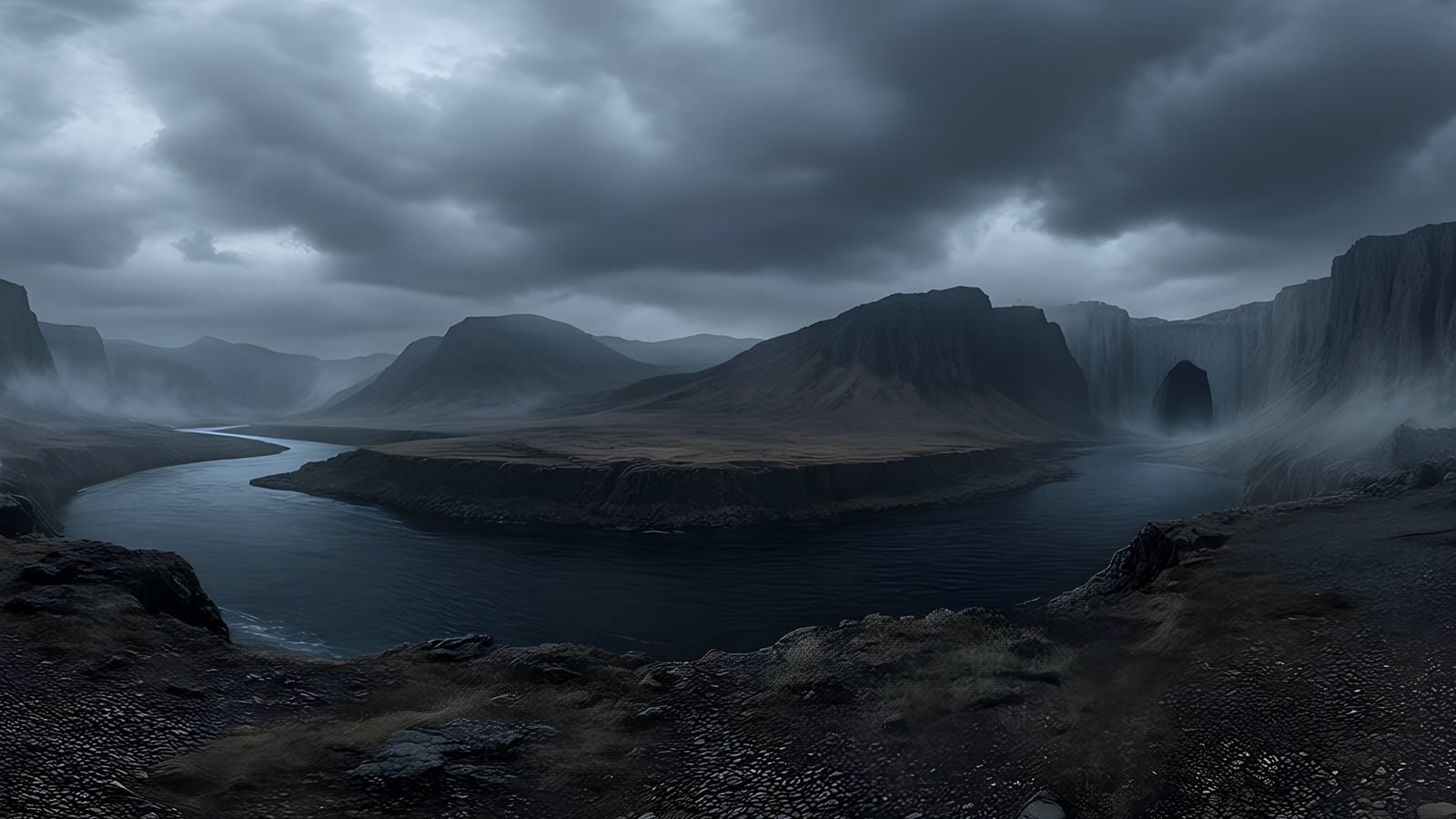 Unreal Engine
 skyboxes from a text prompt
Generate the sky your Unreal Engine level is set under: a seamless 8K 360° EXR from a text prompt, ready for HDRI Backdrop and Sky Light.
Explore
Unreal Engine
Unreal Engine skyboxes from a text prompt
Generate the sky your Unreal Engine level is set under: a seamless 8K 360° EXR from a text prompt, ready for HDRI Backdrop and Sky Light.
Explore
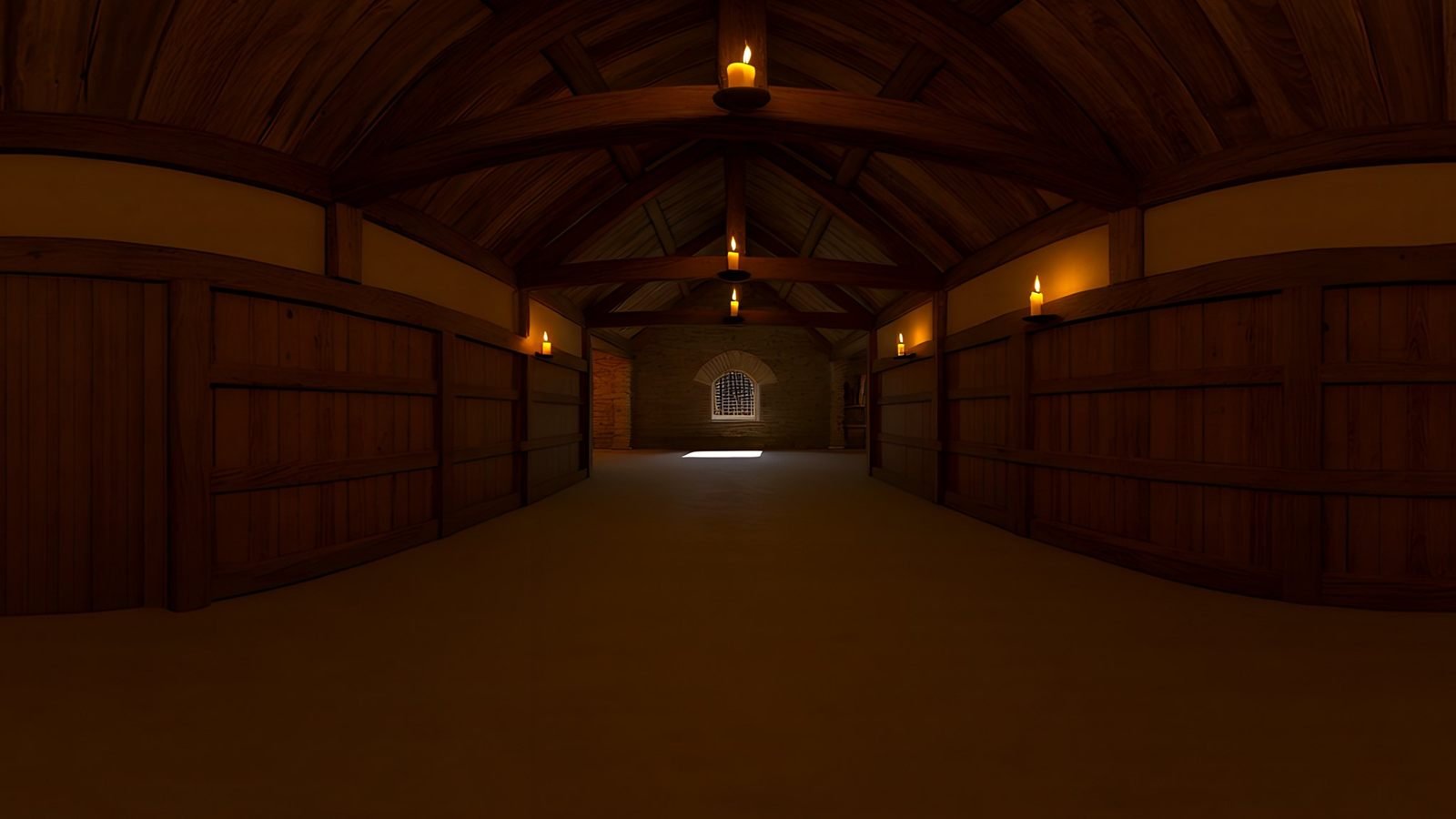 Virtual production
AI environments for virtual production and previs
Scout, pitch and previs locations that do not exist yet. Generate a 360° environment from a description and review it in Unreal or a VR headset.
Explore
Virtual production
AI environments for virtual production and previs
Scout, pitch and previs locations that do not exist yet. Generate a 360° environment from a description and review it in Unreal or a VR headset.
Explore
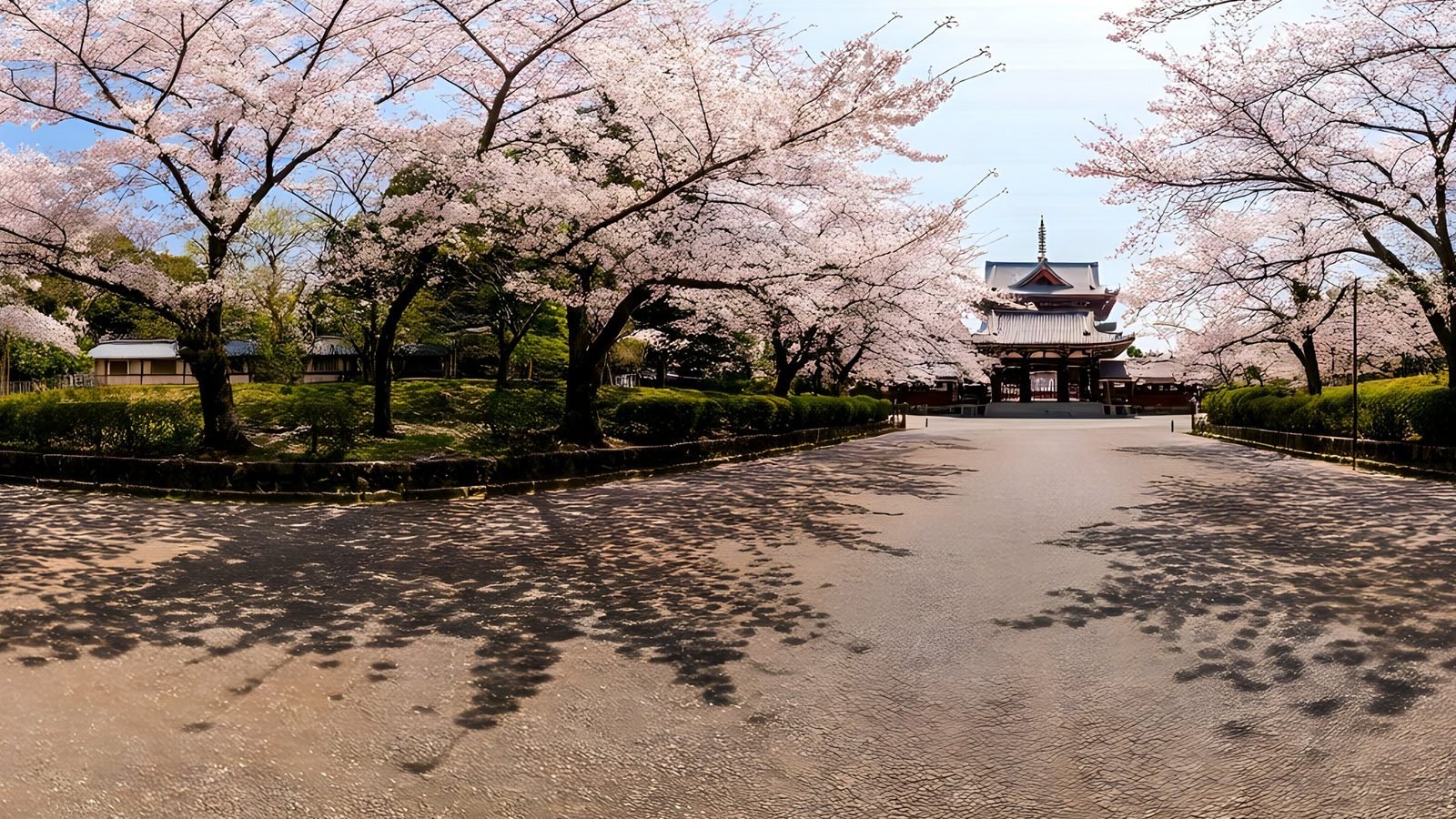 Architecture and interiors
Skies and surroundings for architectural visualisation
Generate the sky and surroundings for architectural renders: seamless 360° environment maps up to 8K, as EXR for lighting or PNG for backdrops.
Explore
Architecture and interiors
Skies and surroundings for architectural visualisation
Generate the sky and surroundings for architectural renders: seamless 360° environment maps up to 8K, as EXR for lighting or PNG for backdrops.
Explore
Your first world is on us
Five free 4K generations when Studio opens. Join the waitlist and be first in.