
Unreal Engine
Unreal Engine skyboxes from a text prompt
Generate the sky your Unreal Engine level is set under: a seamless 8K 360° EXR from a text prompt, ready for HDRI Backdrop and Sky Light.
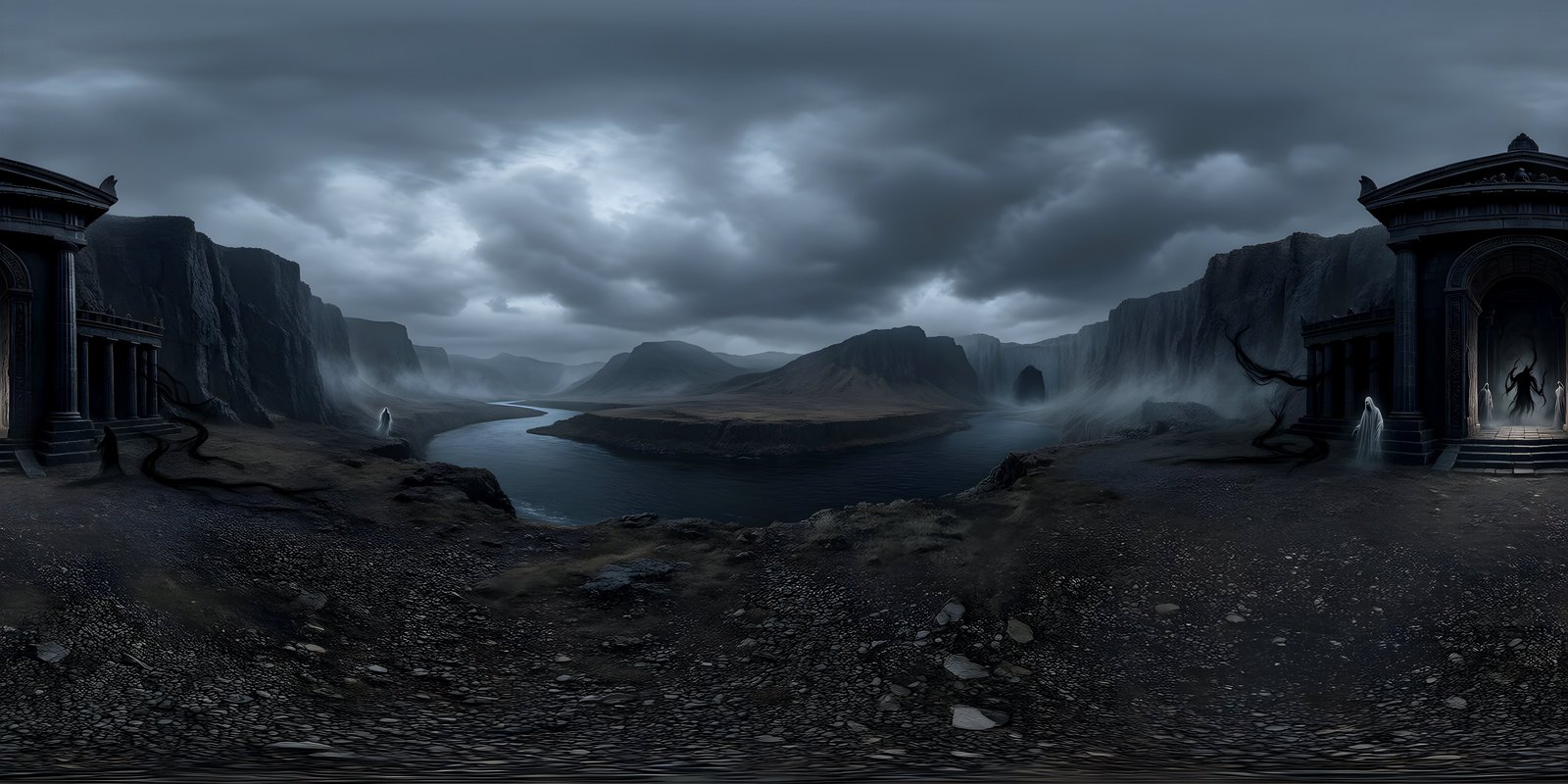
WorldGen360 generates Unreal Engine skyboxes from a text prompt. Describe where your level is set – the weather, the hour, the skyline – and Studio produces a seamless 360° image, up to 8192 × 4096, that works both as the visible sky and as image-based lighting. Export it as EXR, bring it in as a cubemap and drop it into Unreal’s HDRI Backdrop, which projects the world around your level and lights it with its own Sky Light.
A backdrop made for your scene, not a stock one
Stock HDRIs are shot somewhere else, for someone else. Studio generates the world your scene is actually set in – the weather, the time of day, the architecture on the horizon – as one seamless 360° image you can light with and render against. When the art director wants the same valley at dusk, you change a few words instead of searching another library.
What you get
- A single 2:1 equirectangular image at up to 8192 × 4096
- EXR when the world will light the scene, PNG when it is a visible backdrop
- Corrected at the poles, so nothing pinches or seams when you look straight up or down
- Six visual styles – Photorealistic, Cinematic, Digital Painting, Oil Painting, Anime / Cel-Shaded and Stylised Low Poly – to match your art direction
- Layered prompts for the near field, the middle distance and the sky, and a No living creatures option for clean environment plates
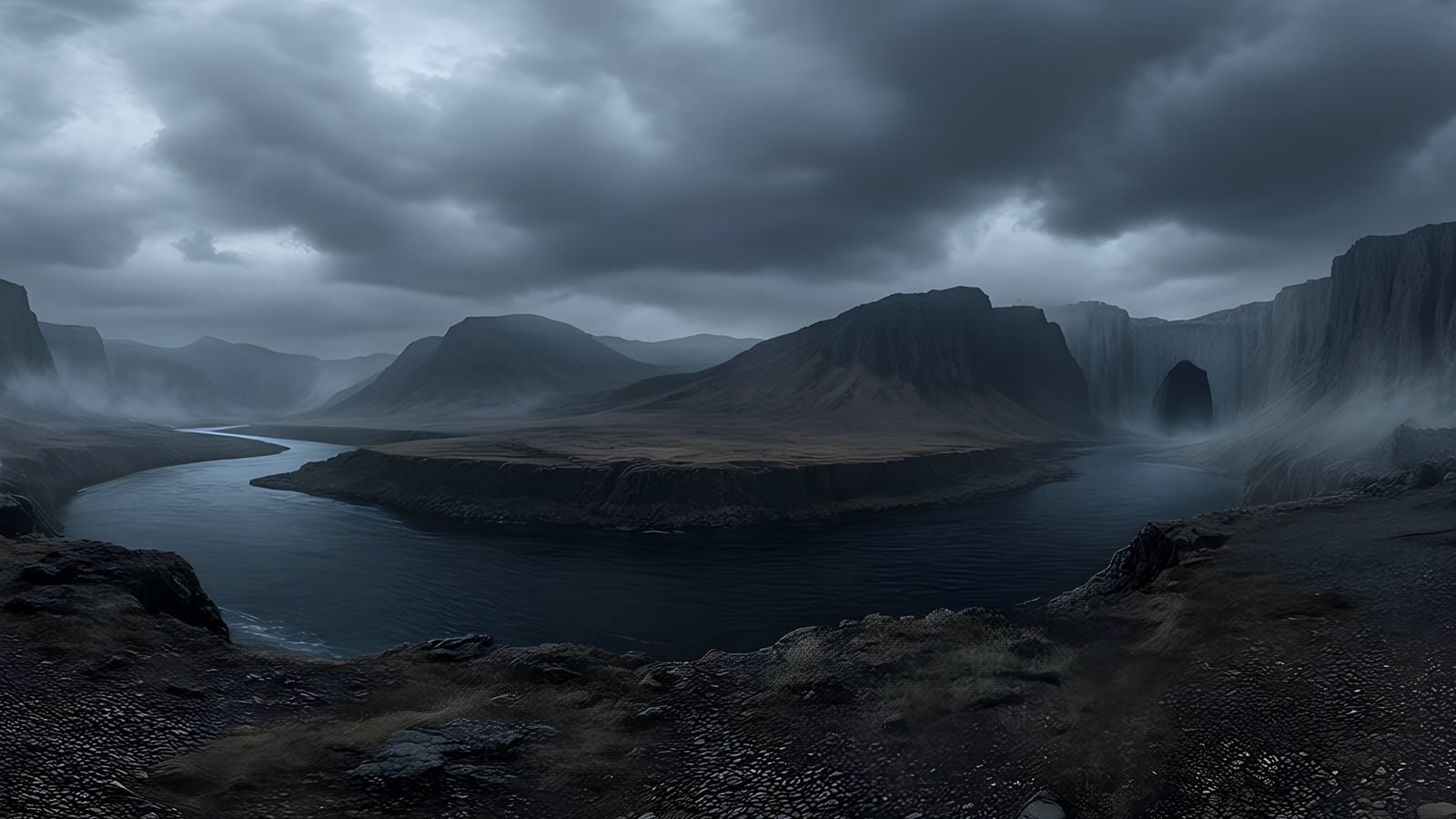
Unreal Engine
Light the level with the world it is set in
Generate the location, export it as EXR and drop it into an HDRI Backdrop. The same image sits behind the scene and lights it.
- One image for backdrop and lighting
- Seamless 360° wrap
- A new time of day by changing a few words
How to set up an HDRI Backdrop in Unreal Engine 5
- Export the world from Studio as EXR if it will light the scene, or PNG if it is only a visible backdrop.
- Enable the plugin: Edit › Plugins, find HDRI Backdrop in the Rendering category, tick it and restart the editor.
- Import the image into the Content Browser. A latitude-longitude
.hdrfile imports as a cubemap (TextureCube); if yours arrives as a flat texture, save it as a long-lat.hdrand import it again. - Open the texture and set Maximum Texture Size to match the image’s resolution, and Mip Gen Settings to NoMipmaps for full quality.
- Drag an HDRI Backdrop actor from the Place Actors panel into the level and set its Cubemap to your texture.
- Tune the actor’s properties (below), then delete any other Sky Light actors in the level: the backdrop brings its own.
| Property | What it does |
|---|---|
| Cubemap | The image projected onto the ground and the backdrop |
| Intensity | How bright the built-in Sky Light is, and how emissive the backdrop looks |
| Size | The size, in metres, of the mesh the image is projected onto |
| Projection Center | The point the image is projected from. Keep its height around 90 cm, a typical camera height |
| Lighting Distance Factor | How much of the ground receives lighting and shadows |
| Use Camera Projection | Makes the image follow the camera instead of tracking the ground |
These steps follow Epic’s documentation for the HDRI Backdrop visualisation tool. Menu names can move between engine versions.
Lighting only: a Sky Light with your world
To light the level with the world without showing it – under your own sky system, for example – use the cubemap in a Sky Light with Source Type set to SLS Specified Cubemap instead of placing a backdrop.
Matching the sun
The backdrop lights the scene softly from every direction, but crisp shadows still need a Directional Light. Rotate the backdrop until the brightest part of the sky sits where you want the sun, then point the Directional Light the same way and match its colour, so the shadows agree with the sky.
Try the same set under different skies
Try the same set under a clear midday sky, an overcast dusk and a neon night with Remix, which keeps the world recognisably the same while it changes what you ask for. Review each version in the 360° viewer before any of them reach the engine. The complete guide to game skyboxes covers resolution, texture memory and lighting in more depth.
Skies for games, cinematics and visualisation
The same world does different jobs depending on what the project is for:
- Games: the sky is on screen almost all the time and turns with the camera. Keep the detail on the horizon, and budget texture memory for the platforms you ship on.
- Cinematics: each shot sees only part of the sphere, so you can turn the backdrop per shot to put the best part of the sky behind the action, and generate a new time of day for a new sequence.
- Architectural visualisation: export EXR so the world lights the building and fills the view through the glass. See architectural visualisation.
- Virtual production and previs: stand a set in a location that does not exist yet and review it in the engine or a headset. See virtual production.
Generated EXR or captured HDRI?
A captured HDRI records the real brightness of a real sky, which is what you want for physically exact lighting and for matching live-action plates. A generated EXR has extra range for grading and lighting, but it is an interpretation of a place, not a measurement of one. For look development, stylised projects and places that do not exist, that is exactly what you need.
Frequently asked questions
How do I add a custom sky in Unreal Engine 5?
Enable the HDRI Backdrop plugin, import your 360° image as a cubemap, and drag an HDRI Backdrop actor into the level with the cubemap assigned. The backdrop shows the sky and lights the scene through its built-in Sky Light.
Should I use the HDRI Backdrop or a Sky Light?
Use the HDRI Backdrop when you want to see the world around the level and be lit by it. Use a Sky Light with Source Type set to SLS Specified Cubemap when you only want its lighting.
Can a generated EXR light my scene realistically?
It lights the scene convincingly and consistently with what is visible, which is what look development and most real-time projects need. It is not a measurement of real light, so to match photographed plates exactly, a captured HDRI is the better tool.
Why is my imported panorama a flat texture and not a cubemap?
Unreal imports latitude-longitude .hdr files as cubemaps. If your image arrives as a standard 2D texture, save it as a long-lat .hdr and import it again.
What texture settings give the sharpest sky?
Export at 8192 × 4096, set Maximum Texture Size to the image’s full resolution and Mip Gen Settings to NoMipmaps, as Epic recommends for the HDRI Backdrop.
Use cases
More ways to use a 360° world
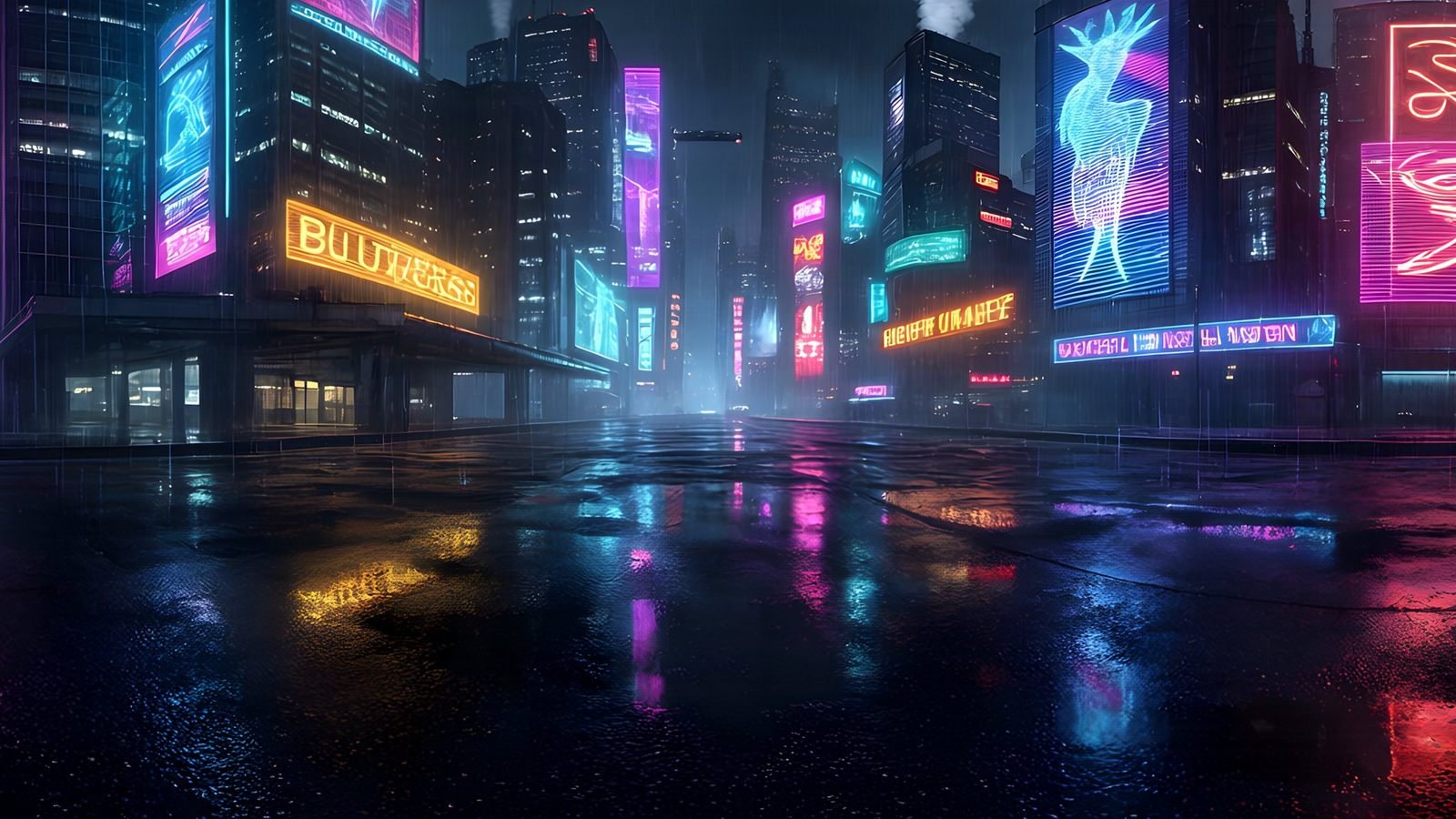 Unity
Generate Unity skyboxes from a text prompt
Generate a seamless 360° sky from a text prompt and use it as your Unity skybox. 8K equirectangular PNG or EXR, pole-corrected, set up in minutes.
Explore
Unity
Generate Unity skyboxes from a text prompt
Generate a seamless 360° sky from a text prompt and use it as your Unity skybox. 8K equirectangular PNG or EXR, pole-corrected, set up in minutes.
Explore
 Virtual reality
Generate VR environments from a text prompt
Create immersive 360° VR environments from a text prompt: 8K, pole-corrected worlds for Quest, WebXR, Unity and Unreal, with no seams up or down.
Explore
Virtual reality
Generate VR environments from a text prompt
Create immersive 360° VR environments from a text prompt: 8K, pole-corrected worlds for Quest, WebXR, Unity and Unreal, with no seams up or down.
Explore
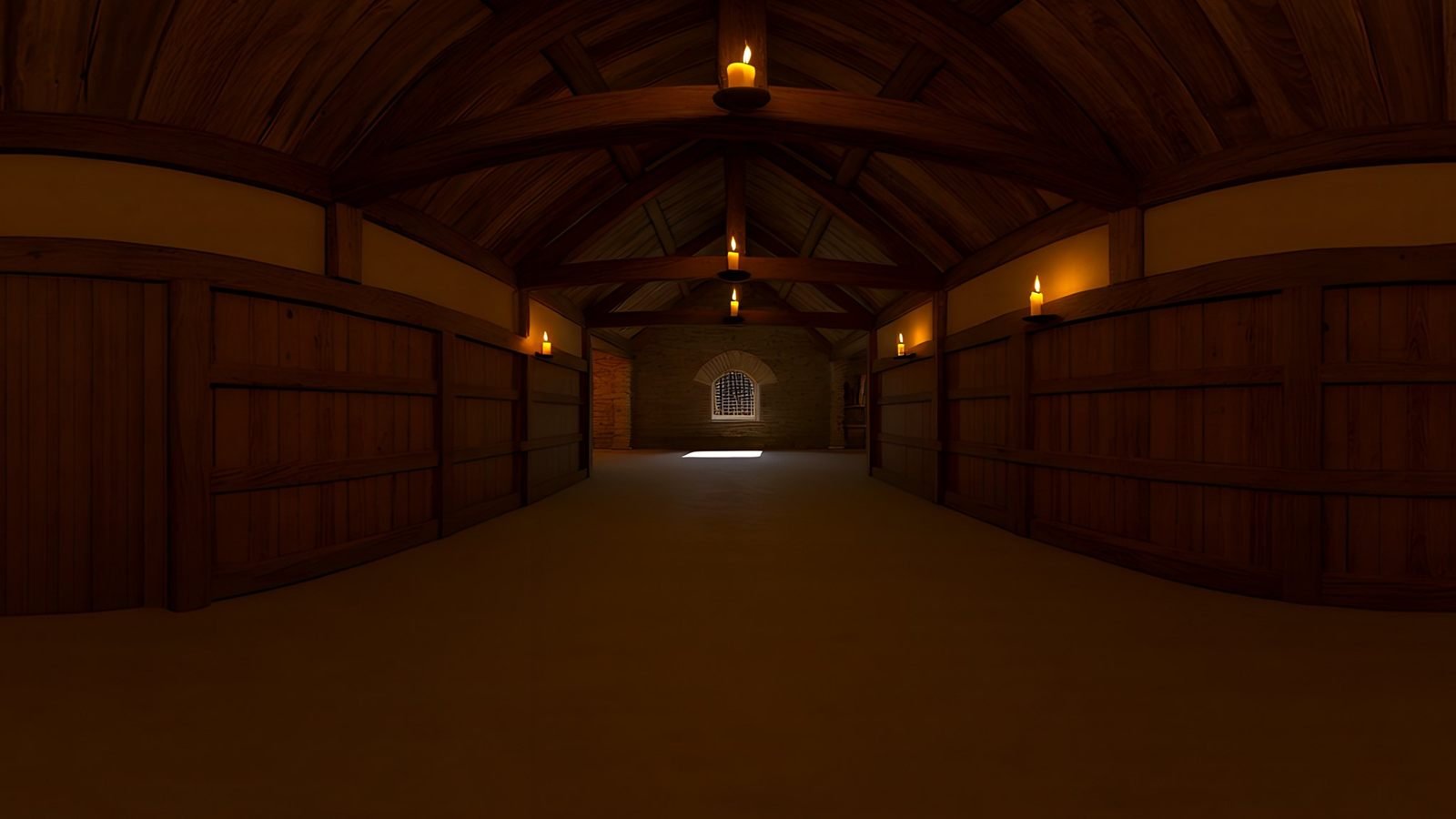 Virtual production
AI environments for virtual production and previs
Scout, pitch and previs locations that do not exist yet. Generate a 360° environment from a description and review it in Unreal or a VR headset.
Explore
Virtual production
AI environments for virtual production and previs
Scout, pitch and previs locations that do not exist yet. Generate a 360° environment from a description and review it in Unreal or a VR headset.
Explore
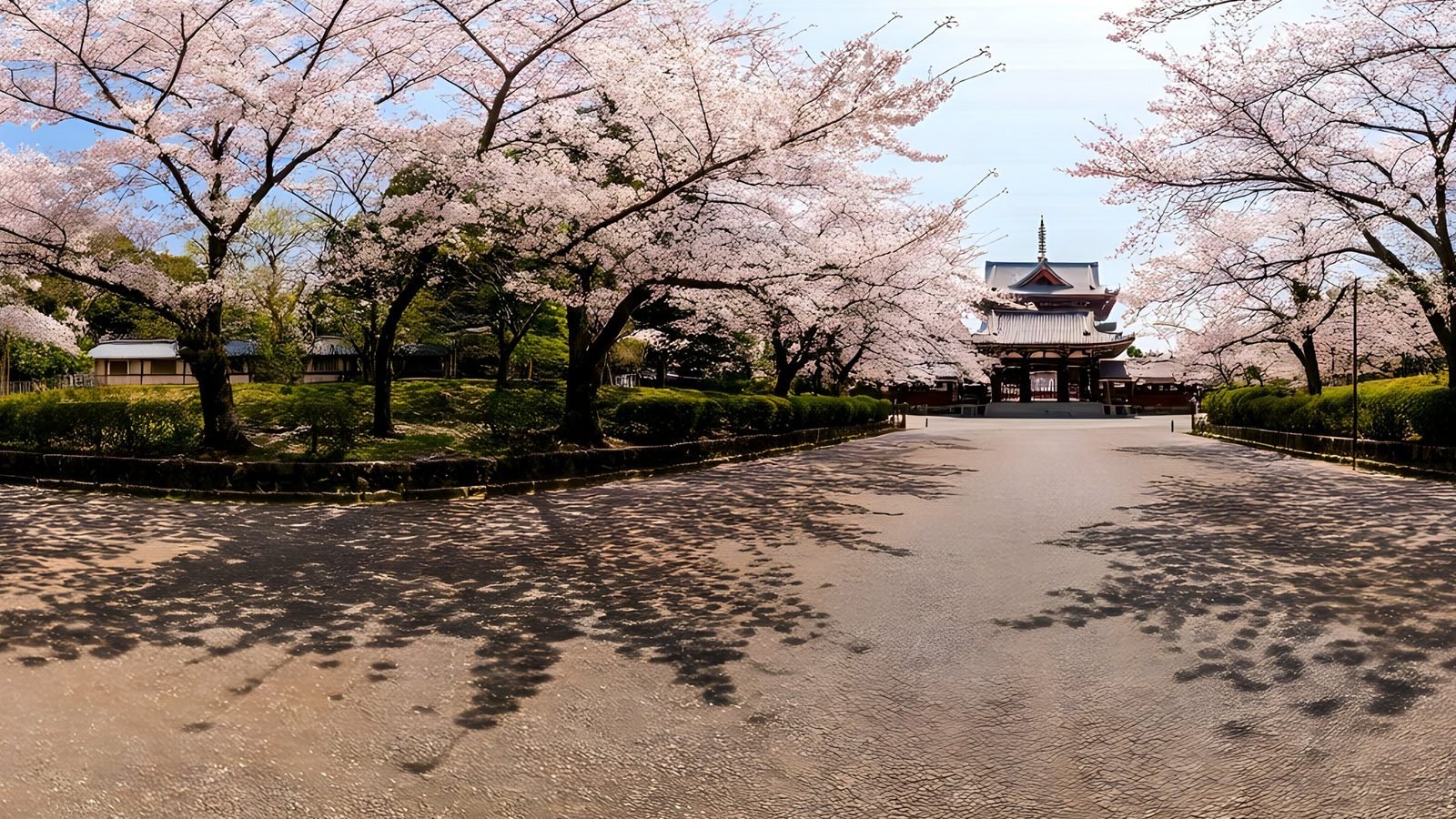 Architecture and interiors
Skies and surroundings for architectural visualisation
Generate the sky and surroundings for architectural renders: seamless 360° environment maps up to 8K, as EXR for lighting or PNG for backdrops.
Explore
Architecture and interiors
Skies and surroundings for architectural visualisation
Generate the sky and surroundings for architectural renders: seamless 360° environment maps up to 8K, as EXR for lighting or PNG for backdrops.
Explore
Your first world is on us
Five free 4K generations when Studio opens. Join the waitlist and be first in.