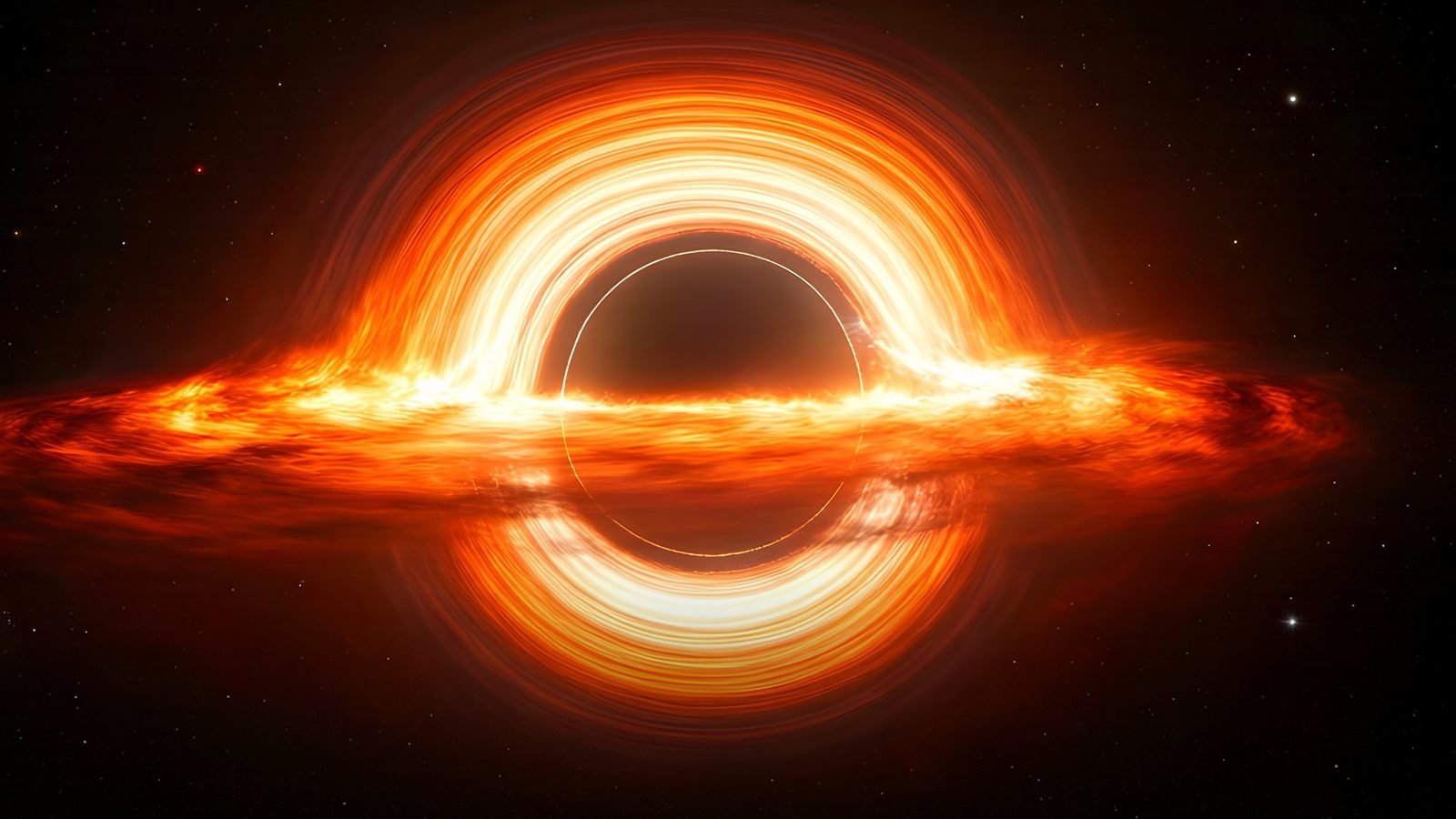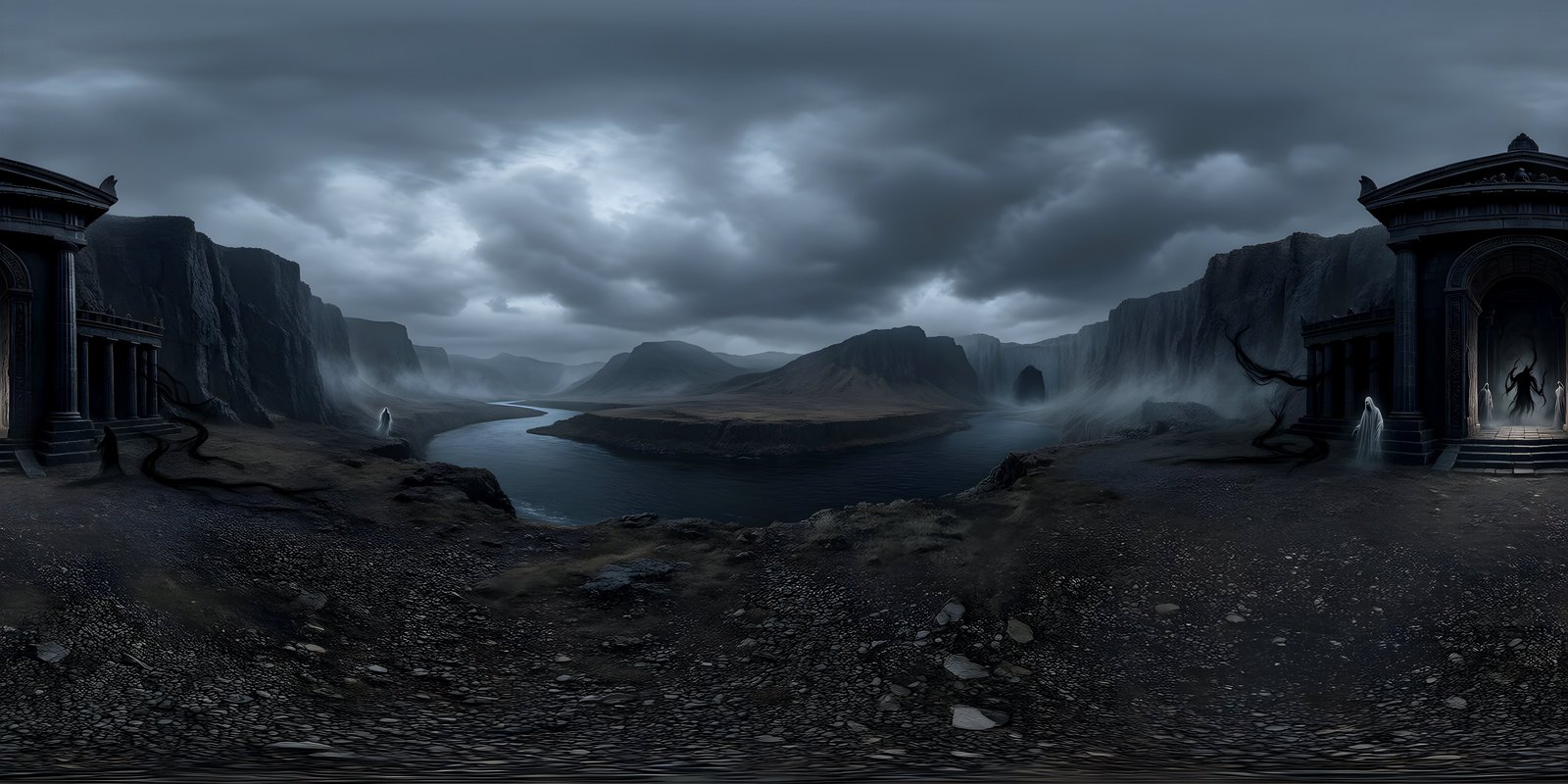
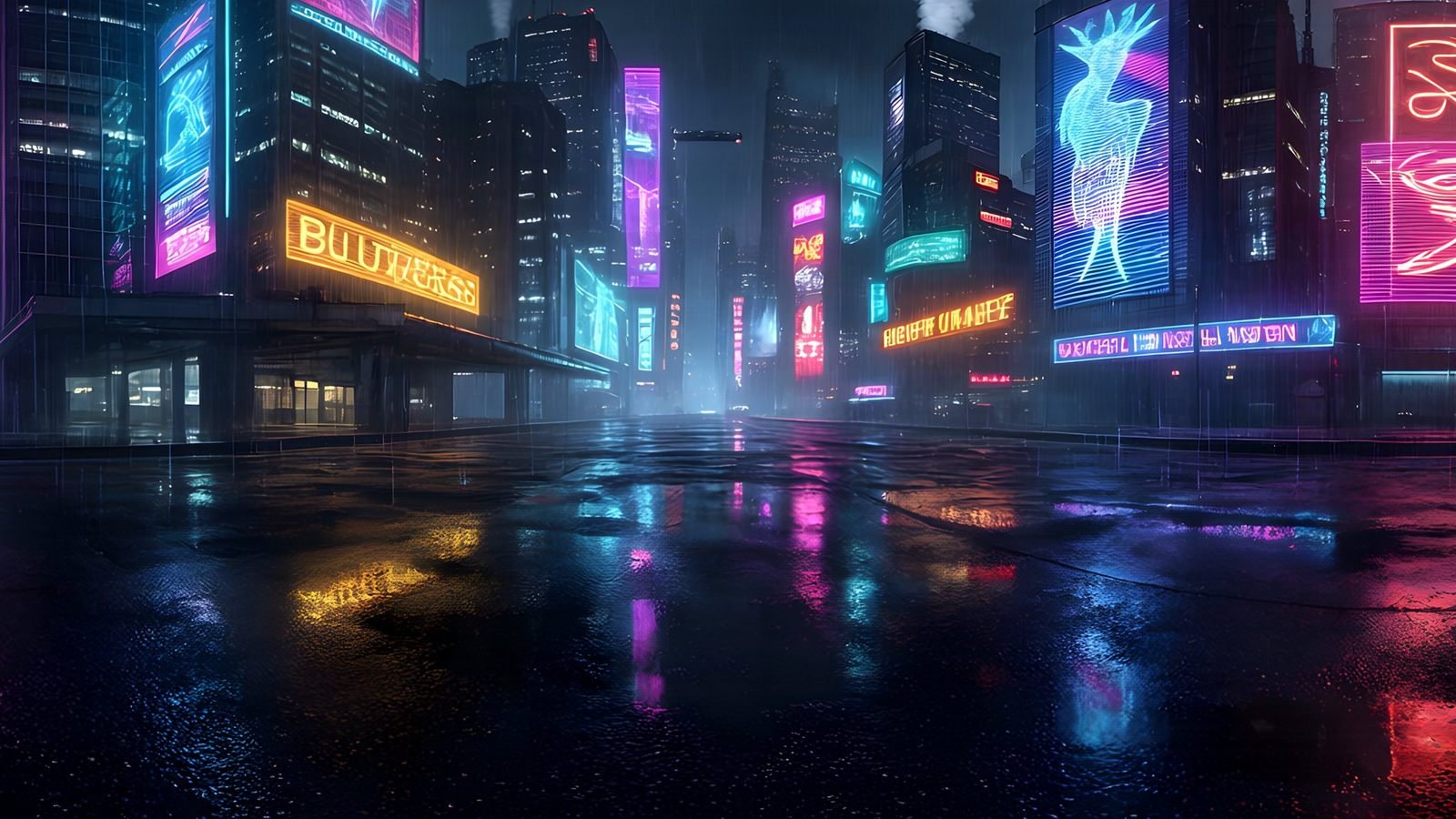
A game skybox is the 360° image an engine draws behind everything else in a level: the sky, the far mountains, the glow of a distant city. It usually does three jobs at once. It is the backdrop, it lights the scene with ambient light, and it appears in every reflection. Most engines take the skybox as either a single 2:1 panoramic image or a cubemap of six faces, and convert between the two. For PC and console, 8192 × 4096 keeps the sky sharp across a wide view, at about 32 MB of video memory once compressed; mobile games usually ship a 4096 × 2048 copy. This guide covers what a skybox does, the terms each engine uses, resolution and memory, matching the art direction, lighting from the sky, and the setup in Unity, Unreal Engine, Godot and Blender.
What a skybox does in a game
- Backdrop: everything too far away to model, drawn behind the level at almost no geometry cost. Engines draw the sky after the solid geometry, so only the pixels that actually show sky pay for it.
- Ambient light: engines sample the sky to light objects from every direction, so a warm sunset sky gives warm fill light and an overcast sky gives soft, even light.
- Reflections: water, metal, glass and wet streets reflect the sky, which is why a mismatched sky makes a scene look wrong even when you cannot see it directly.
- Menus and loading screens: a slowly turning world behind the interface is one of the cheapest ways to set the tone before play starts.
There are two broad ways to make a game sky. A procedural sky is calculated by the engine from the sun’s position and a model of the atmosphere, as Unreal Engine’s Sky Atmosphere or Unity HDRP’s Physically Based Sky do. It is ideal for a full day-night cycle, because the sky changes as the sun moves. An image sky, the subject of this guide, is a 360° picture. It can show anything: a painted sky, an alien horizon, a specific city skyline, weather that no atmosphere model produces. It costs one texture and looks exactly the same on every machine.
Many games combine the two, a procedural atmosphere for the sun and sky colour with image or mesh layers for the distant scenery. If your game has a fixed time of day per level, or an art style no physical model would produce, an image sky is usually the simpler and better-looking choice.
Skybox, cubemap, panoramic: the terms engines use
A skybox is the engine feature that draws an environment behind everything else, and by extension the image it uses. That image comes in one of two shapes. A panoramic image, also called equirectangular or latitude-longitude, is a single 2:1 picture of the whole sphere. A cubemap is the same sphere stored as six square faces, which is how graphics cards prefer to sample environments. Most engines accept a panoramic image and convert it to a cubemap on import, so keep your master copy as one equirectangular image. The complete guide to 360-degree images explains the projection in detail.
| Engine | Image sky | Procedural sky | Lighting from the sky |
|---|---|---|---|
| Unity (Built-in, URP) | Skybox/Panoramic, Skybox/Cubemap and Skybox/6 Sided materials | Skybox/Procedural | Lighting window, Environment tab |
| Unity HDRP | HDRI Sky, set on a Volume | Physically Based Sky, Gradient Sky | The same Volume, plus reflection probes |
| Unreal Engine 5 | HDRI Backdrop, or a sky sphere with an unlit material | Sky Atmosphere with Volumetric Cloud | Sky Light, captured or from a cubemap |
| Godot 4 | PanoramaSkyMaterial | ProceduralSkyMaterial, PhysicalSkyMaterial | Environment ambient and reflected light set to Sky |
| Blender | Environment Texture on the World | Sky Texture | The World lights the scene in Cycles and Eevee |
Unity’s 6 Sided material takes six separate images, one per face, which is how many older skies were supplied. It works, but six files are harder to keep in step than one, and the faces must be exported in the orientation Unity expects. Given a choice, use the panoramic image.
Skybox resolution and texture memory
A sky is on screen almost all the time and is magnified across the whole view, so it deserves more resolution than most textures. It also stays in memory for the whole level. Getting the balance right starts with knowing what each size actually costs. The table below is calculated from the pixel count and the bytes each format uses per pixel, before mipmaps.
| Sky size | Uncompressed 8-bit RGBA | BC7 or ASTC 4×4 | ASTC 6×6 | Half-float RGBA (HDR) | BC6H (HDR) |
|---|---|---|---|---|---|
| 2048 × 1024 | 8 MB | 2 MB | 0.9 MB | 16 MB | 2 MB |
| 4096 × 2048 | 32 MB | 8 MB | 3.6 MB | 64 MB | 8 MB |
| 8192 × 4096 | 128 MB | 32 MB | 14 MB | 256 MB | 32 MB |
Add about a third for a full chain of mipmaps. BC7 and BC6H are the desktop and console formats for colour and HDR respectively; ASTC is the mobile and standalone VR format, where a larger block size such as 6×6 trades some quality for a smaller texture. Two practical points follow. First, never ship an HDR sky uncompressed: at 8K it is a quarter of a gigabyte. Second, a file’s size on disk tells you nothing about its size in memory. An 8K PNG of a few tens of megabytes still becomes 128 MB of texture unless it is compressed on import. Your engine will show the real figure: Unity lists it under the texture preview in the Inspector, and Unreal’s texture editor shows the resource size. Skybox texture size and memory, explained works through the maths and suggests settings for each platform.
| Platform | Suggested size | Why |
|---|---|---|
| PC and console | 8192 × 4096 | The sky stays sharp across a wide, high-resolution view, at about 32 MB compressed. |
| Mobile | 4096 × 2048 | Memory is tight and screens are small; 4K holds up well. |
| Standalone VR | 8K where memory allows, otherwise 4K | Headsets magnify the sky, so test on the device. |
Skies are almost entirely smooth gradients, the hardest thing for block compression to get right. The lowest-quality formats, such as BC1, show visible banding in a clear sky; BC7 on desktop and ASTC 4×4 or 6×6 on mobile hold up far better. Always generate at the highest resolution you can and make smaller copies for each platform. It is easy to downscale later and impossible to add detail that was never there.
Game environments
Generate the sky your level is set under
Describe the setting and pick the art style your game uses. Studio builds the whole sphere, seamless and pole-corrected, ready for your engine.
- Photoreal, painted or low poly
- Near, middle and sky prompt layers
- PNG or EXR, up to 8K
Matching the sky to the art direction
A photographic sky behind stylised characters is one of the quickest ways to make a game look unfinished. Players may not be able to say what is wrong, but they notice the clash between a sky with photographic noise and grain and a world of clean, painted surfaces. Choose the style of the sky to match the rest of the art: painted skies for painterly games, low poly for low poly worlds, photoreal only when the rest of the game is. Stylised skyboxes shows how to match a sky to the art style, palette and values included.
Style is only the first check. A few more make the sky sit in the level rather than on top of it:
- Value. Keep the sky a little darker or calmer than the play space, so characters and objectives read against it. A blazing sky pulls the eye upwards, away from the game.
- Saturation and haze. Distant things look paler and bluer through air. A sky that is more saturated than the foreground looks pasted on; one that is slightly hazier sits behind it.
- Light direction. The sun, or the brightest part of the sky, must agree with the direction of the level’s shadows. This is the most common mismatch, and the easiest to fix by rotating the sky.
- Palette and time of day. A warm dusk sky over a level lit with cold, white noon light never looks right. Describe the level’s palette and hour in the prompt so the sky and the lighting tell the same story.
- Consistency across levels. Use the same style preset for every sky in a game and change a few words at a time, so a set of levels feels like one world.
Skyboxes for different kinds of game
How much of the sky players see, and how closely they look at it, depends on the camera. That changes where the resolution and the detail should go.
- First and third person: the player can look anywhere, so the whole sphere is on screen at some point, and the horizon most of the time. Use 8192 × 4096 and put the detail on the horizon.
- Top-down, isometric and strategy: the camera rarely sees the sky itself. Its main jobs are ambient light and reflections, so 4096 × 2048 is often plenty and an EXR matters more than extra pixels. The sky still sets the colour of the whole scene, so choose it as carefully.
- Racing and flight: players move fast and watch the horizon constantly, so a clean, continuous horizon matters more than detail overhead. At altitude, the lower half of the world can show beyond the terrain’s draw distance, so the ground in the image must suit the height people fly at.
- Space games: there is no horizon and no up, so every part of the sphere is equally visible, including the poles. Pole correction and a seamless wrap matter more here than in any other genre, and stars need enough resolution to stay points rather than smudges.
- Menus and cut scenes: the camera is under your control, so you know exactly which part of the sky is seen. Turn the world so the best part of it sits behind the action.
Day, night and weather with image skies
An image sky shows one moment, but it does not have to stay frozen. There are several ways to make it change, from the simplest upwards:
- Generate a set. Describe the same place at dawn, midday, dusk and night, changing only the light in the prompt and keeping the style preset, and give each level or chapter the sky that suits it.
- Tint and dim it. Unity’s panoramic skybox material has Tint Color and Exposure settings, and most engines offer the equivalent. Darkening and cooling the sky a little is often enough to suggest a storm coming in.
- Turn it slowly. Rotating the sky very slowly makes clouds appear to drift. Keep it slow enough that nobody notices the sky itself moving, and never do it in VR.
- Blend between two skies. A material that cross-fades between two sky textures over a few seconds can move from clear to stormy at a scripted moment. Unity’s standard skybox materials show a single image, so this needs a simple custom sky shader; in Unreal it is a blend between two cubemaps in a sky sphere material.
Whenever the sky changes, the lighting has to change with it, either by capturing it again at run time or by switching between lighting baked for each state. If the time of day must move continuously through a full cycle, a procedural sky is usually the better tool, with image layers still adding distant scenery.
Lighting a scene from its skybox
Image-based lighting uses the environment for two kinds of light. Diffuse light is the soft fill from the whole sky, averaged into a very low-detail version that engines store compactly, for example as spherical harmonics in Unity’s ambient probe. Specular light is the reflection of the sky in shiny surfaces, stored in reflection cubemaps whose blurrier mip levels stand in for rougher materials. Both are generated from your skybox, so changing the sky changes the lighting everywhere.
Export the sky as EXR when it will light the scene. In an 8-bit PNG the sun and the bright sky around it are clipped to plain white, so the lighting they produce is flat and directionless. A floating-point EXR keeps the bright areas brighter than white, so they still stand out in the lighting and reflections.
Even so, keep a real directional light for the sun. Sky lighting is soft by nature, and crisp, cast shadows need a light with a direction. Rotate the sky until its brightest area sits where you want the sun, point the directional light the same way, and match its colour to the sky around the sun. Then balance the two: raise the directional light for a hard, sunny look, or the sky contribution for an overcast one.
Finally, remember to refresh the lighting after you change the sky. In Unity, generate lighting again from the Lighting window if the ambient colour has not updated. In Unreal, recapture the Sky Light, or turn on its Real Time Capture. Many “the lighting does not match my sky” problems are simply old lighting data.
Horizon, scale and parallax
A skybox is drawn as if it were infinitely far away. As the player walks, it does not move, and nothing in it moves relative to anything else. For the sky and distant scenery that is correct: the sun and the far mountains should not shift as you cross a courtyard. For anything close, it breaks the illusion at once, because real nearby objects slide past the background as you move. That effect is parallax, and a single image cannot produce it.
- Keep the detail far away. Stage the sky’s detail on the horizon or beyond. Near elements belong in the level as real geometry.
- Bridge the middle distance. Between the level and the sky, low-detail models or flat cards of hills and buildings give some parallax without much cost.
- Line up the horizon. In a level world the horizon runs across the middle of the image. Make sure your terrain meets it without a gap or an overlap, and turn the sky so its landmarks sit where your level needs them.
- Hide the join with fog. Match the fog colour to the sky just above the horizon, so the far edge of the terrain fades into the sky instead of ending at a line.
- Mind the ground in the image. The lower half of a world usually shows ground seen from a particular height. If your terrain covers it, it only matters for reflections and lighting; if players can see it, it must suit their height and the scale of the level.
Setting up a skybox in each engine
Unity
Import the image and raise Max Size to 8192 in its import settings, because Unity caps textures at 2048 by default. Create a material with the Skybox/Panoramic shader, set Mapping to Latitude Longitude Layout and assign the texture, then set it as the Skybox Material on the Environment tab of Window › Rendering › Lighting. That works in the Built-in and Universal render pipelines. In HDRP, import the image as a cubemap and use an HDRI Sky override on a Volume. The Unity skybox guide has every step, the cubemap method and fixes for common problems, and how to make a skybox in Unity adds HDRP, import settings and lighting from the sky in detail.
Unreal Engine
Enable the HDRI Backdrop plugin, import the world as a latitude-longitude .hdr file so it arrives as a cubemap, and drag an HDRI Backdrop actor into the level with the cubemap assigned. The backdrop projects the world around the level and lights it through its own Sky Light; add a Directional Light for the sun. To light the level without showing the image, use a Sky Light with its Source Type set to SLS Specified Cubemap. The Unreal Engine skybox guide covers the backdrop’s settings in detail, and HDRI Backdrop in Unreal Engine 5 walks through every property, from Projection Center to matching the sun.
Godot 4
Add a WorldEnvironment node and give it a new Environment. Set Background › Mode to Sky, create a Sky, and give the sky a PanoramaSkyMaterial with your image as its Panorama. To light the scene from the world, set the environment’s Ambient Light and Reflected Light sources to Sky. For sharper reflections, raise the sky’s Radiance Size, at some cost in memory and update time. How to make a skybox in Godot 4 covers each setting, the tonemapper and performance.
Blender
In the World properties, add an Environment Texture node, connect it to the Background shader’s Color input and open your image, leaving the projection on Equirectangular. The Background’s Strength sets how bright the world is. To turn the world, put a Mapping node, driven by Texture Coordinate › Generated, in front of the texture and change its Z rotation. It lights the scene in both Cycles and Eevee. To keep the lighting but hide the image in renders, tick Film › Transparent in the render properties. How to add an HDRI in Blender goes step by step, including showing the camera a different background from the one that lights the scene.
Whichever engine you use, the image is the same: one 2:1 equirectangular world at 8192 × 4096, PNG for a visible sky or EXR to light the scene.
Common skybox problems and how to fix them
| Problem | Likely cause | Fix |
|---|---|---|
| The sky looks soft or blurry | Imported below its full resolution | Raise the maximum texture size to 8192 |
| A thin line runs down one side | Mipmaps sampling across the wrap | Turn off mipmaps for the sky, or use a cubemap |
| Banding in a clear sky | Low-quality compression | Use BC7 or ASTC 4×4, or add slight noise before import |
| The lighting does not match the sky | Old lighting data, or ambient light not taken from the sky | Regenerate or recapture the lighting, and set the ambient source to the sky |
| The sun is on the wrong side | The sky faces the wrong way | Rotate the sky, then point the directional light to match |
| A hard line where the terrain meets the sky | The terrain ends before the image’s horizon | Fog matched to the horizon colour, or distant cards of hills |
| The sky looks too close | Near detail in the image, which does not move as the player does | Generate it again with the detail staged far away |
| Reflections are too bright or too dull | Sky and sun intensities not balanced | Adjust the sky’s intensity separately from the directional light |
Engine-specific versions of these fixes are on the Unity and Unreal Engine pages.
Performance checklist
- Raise the engine’s maximum texture size for the sky, or it will be quietly downscaled on import.
- Compress the sky for shipping builds with a high-quality format (BC7 or BC6H on desktop, ASTC on mobile), and keep the PNG or EXR as the source.
- Check the texture’s real memory size in the engine, not its file size on disk.
- If a thin line appears where a panoramic sky wraps, turn off mipmaps for that texture, or convert it to a cubemap, which has no wrap line.
- Give the reflection probes only as much resolution as your materials need; rough surfaces never show the difference.
- Make a smaller copy per platform rather than one compromise size for all of them.
- Test on the lowest-spec target device before settling on a resolution.
Where do game skyboxes come from?
There are four usual sources, and each has its place. Stock HDRI libraries are quick and physically accurate, but they are photographs of somewhere else, and a photographic sky rarely suits a stylised game. Painting or commissioning a sky gives you exactly what you want, at the cost of days of work and a new invoice for every revision. General AI image tools are fast, but they make flat, framed pictures rather than seamless spheres. A 360° world generator builds the sky from your own description, in your game’s style, as a complete sphere that wraps cleanly, so a sky can be tried, changed and replaced as quickly as the level around it.
Frequently asked questions
What is a skybox in a game?
A skybox is the 360° image a game engine draws behind everything else in a level, such as the sky, clouds and distant scenery. It is drawn as if infinitely far away, so it never gets closer as the player moves, and engines also use it to light the scene and fill reflections.
What resolution should a game skybox be?
8192 × 4096 for PC and console games, which takes about 32 MB of video memory with BC7 compression. For mobile, 4096 × 2048 is usually enough and takes about 8 MB with ASTC 4×4. Generate at 8K and downscale for each platform.
Should I use a cubemap or a panoramic skybox?
Keep the master as a panoramic (equirectangular) image, because every tool reads it. In the engine, either works: a panoramic material is quickest to set up, and a cubemap avoids the thin line some engines show where a panoramic image wraps. Many engines convert a panorama to a cubemap on import anyway.
Does the skybox light the scene?
Yes, in most engines. Unity, Unreal Engine, Godot and Blender can all use the sky for ambient light and reflections. Export an EXR for the best lighting, keep a directional light for the sun and its shadows, and regenerate or recapture the lighting whenever you change the sky.
Can I make a game skybox with AI?
Yes. WorldGen360 Studio generates a complete 360° sky from a text description, in the style your game uses, as one seamless 2:1 image at up to 8192 × 4096. Before using any AI skybox, look straight up, straight down and all the way round to check the poles and the wrap.