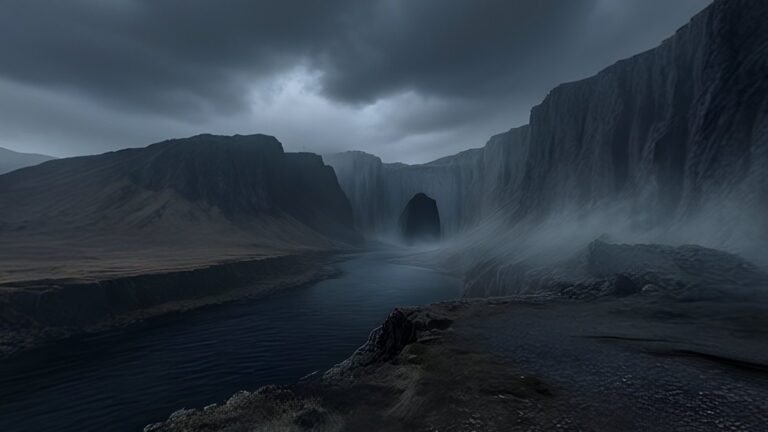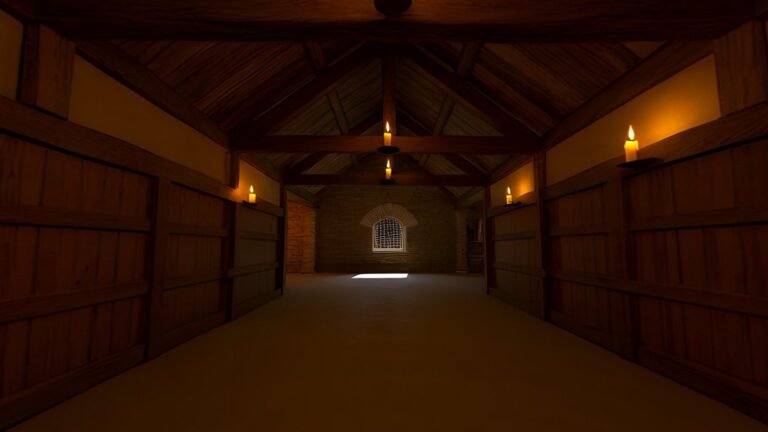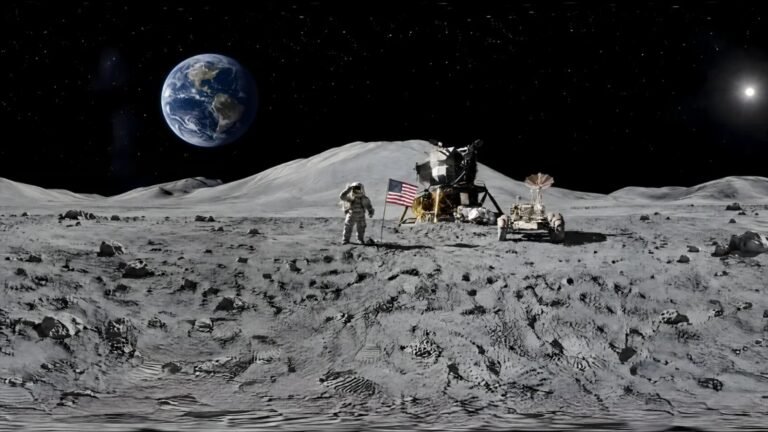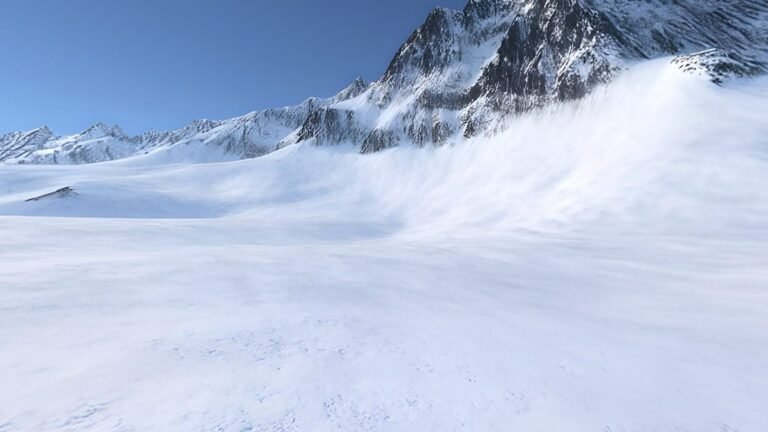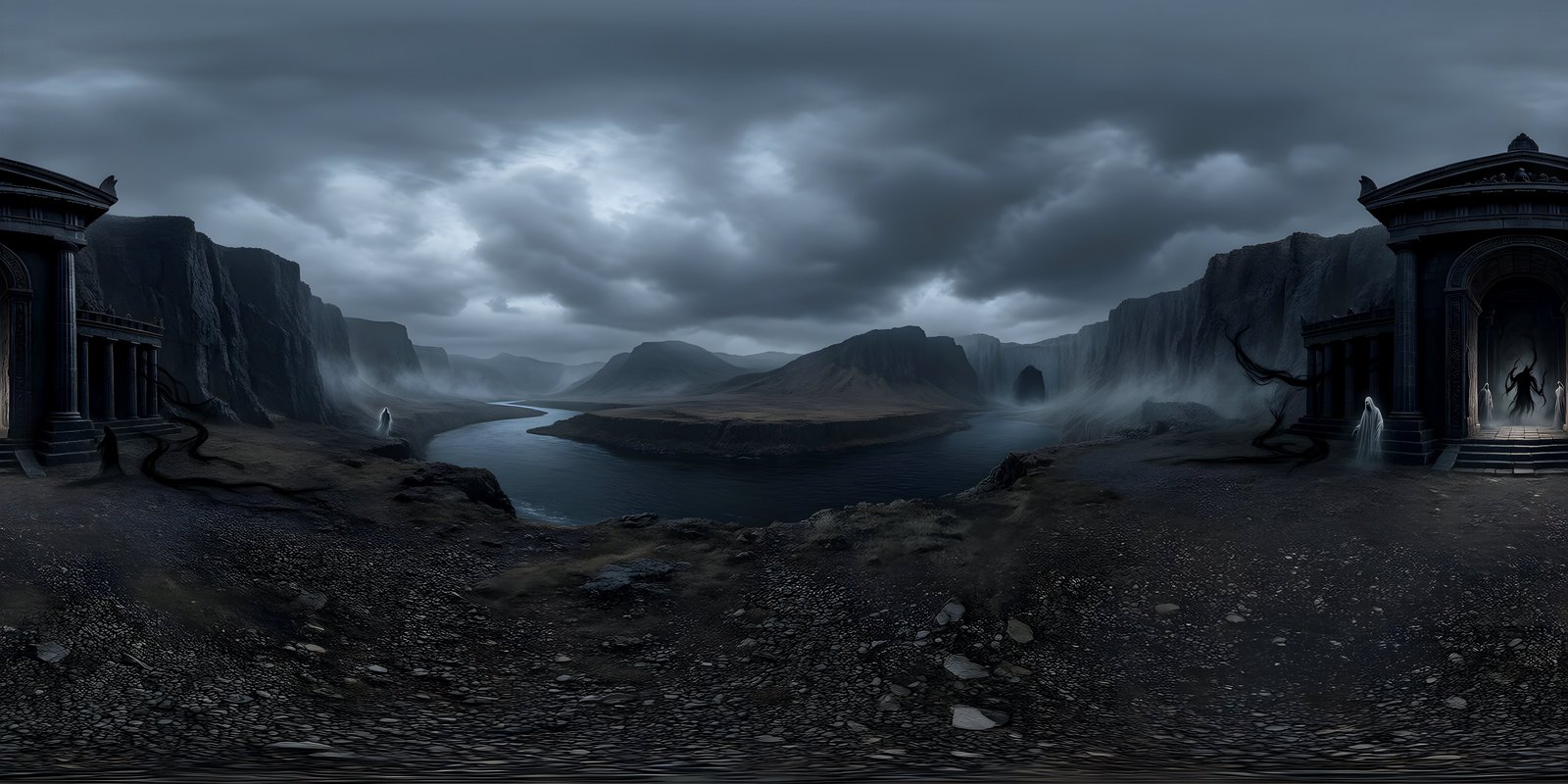
A VR environment is the world that surrounds someone in a headset: the sky, the horizon and the surroundings they see wherever they turn. The quickest way to build one is a 360° image, a single picture of the whole sphere that the headset wraps around the viewer. Three things decide whether it works. Resolution: at 8192 × 4096 a 360° world gives about 23 pixels per degree, close to the 25 that Meta quotes for Quest 3, where 4K gives less than half. Depth: a standard 360° world is mono, which suits distant surroundings, so anything people can reach belongs in the scene as real 3D geometry. And comfort: a level, stable horizon, a steady frame rate and sensible brightness. This guide covers each of those, plus performance on standalone headsets and the ways to get a world into a headset.
Why the environment matters more in VR
On a screen, the environment is framed by the edges of a monitor and seen from a distance. In a headset there are no edges and no distance: the environment is where the person is. People look up, down and behind them, often in the first few seconds, and they notice at once if the sky pinches overhead, a seam runs down one side or the light behind them does not match the light in front.
The environment also sets the scale of an experience. A wide horizon makes a space feel open and calm; a close, dark one makes it feel enclosed. That affects how people move, how long they are comfortable staying and how they read everything else in the scene. And it is the first thing they see. A convincing world does more for the feeling of being somewhere, which VR designers call presence, than almost any other single asset, and a soft, seamed or badly lit one undoes it just as fast.
That makes the environment unusually good value. A single 360° world is one texture, yet it fills the whole field of view for the whole session, including every moment when people are simply looking around.
Designing a VR environment around the player
A 360° world has no frame, but it does have a front: the direction people face when the experience starts. You control which way the world is turned at that moment, so use it.
- Put the best view in front. The first thing people see sets their sense of the place. Turn the world so its strongest view is straight ahead when the session begins.
- Keep the sun off to one side. A bright sun directly ahead at eye level is dazzling in a headset. Place it to the side or behind, where it lights the scene without glaring.
- Reward turning round. People look behind them sooner or later. Give every direction something worth seeing, even if it is quieter than the main view.
- Put interest near the horizon. Attention in 360° mostly stays around eye level, and looking far up or down for long is tiring. Landmarks, skylines and weather near the horizon get seen; detail overhead mostly does not.
- Leave room for the interface. Menus and text usually float in front of the player. A calmer, darker patch of world behind them keeps them readable.
- Include things of known size. Trees, doors and buildings in the distance let people judge scale, which a bare landscape does not.
Resolution and pixels per degree
A headset shows a small part of the sphere at a time, magnified by its lenses to fill your view. How sharp a 360° world looks depends on how many of its pixels fall into each degree of that view, which is the image width divided by 360. That number can be compared directly with what the headset’s display can show. Meta quotes about 25 pixels per degree for Quest 3, whose displays are 2064 × 2208 pixels per eye.
| World size | Pixels per degree | Against a 25 px/° display | In practice |
|---|---|---|---|
| 4096 × 2048 | about 11.4 | about 45% | Visibly soft; fine for dark, distant or blurred skies |
| 8192 × 4096 | about 22.8 | about 90% | Close to what the display can show; the practical target |
| 16384 × 8192 | about 45.5 | beyond it | Detail the display cannot show, at four times the memory of 8K |
A few details sit behind those numbers. Headsets are sharpest in the centre of the lens and softer towards the edges, so the figures describe the best case, which is also where people look. The world is resampled into the app’s own render buffer before it reaches the display, so rendering at a low resolution softens even an 8K world. And sharpness is not only resolution: a world with little fine detail, such as a night sky or a hazy seascape, hides the difference between 4K and 8K better than a crisp city skyline does.
The rule that follows is simple: generate at 8192 × 4096 for anything seen in a headset, and only drop to 4K when memory forces you to, after testing both on the device. The complete guide to 360-degree images explains how resolution works for 360° images in general, and the best resolution for VR 360° images compares current headsets.
Mono and stereo 360°
A standard 360° world is mono: one image, shown to both eyes. Because both eyes see exactly the same thing, it has no depth of its own and reads as very far away, like a sky or a distant landscape. That is less of a limitation than it sounds. Beyond a few tens of metres, the difference between what your two eyes see becomes tiny, so for real distant scenery mono is almost exactly what you would perceive anyway.
Stereo 360° stores a separate image for each eye, usually stacked top and bottom in one file, so each eye gets a full 2:1 image and the whole file is square. The slight differences between the two create depth. It has real drawbacks, though:
- It assumes an upright head. The depth is built for eyes side by side on a level line. Tilt your head sideways and the two images stop matching, which is uncomfortable.
- It fades out at the poles. Looking straight up or down, there is no consistent left and right, so stereo images blend to mono there.
- It still does not move. Stereo adds depth, not parallax. Lean or step sideways and nothing shifts, just as with mono.
- It costs twice the pixels, and any mismatch between the two eyes’ images is felt as eye strain rather than seen as a flaw.
Stereo earns its place in captured 360° photos and video of real places with nearby subjects, where the viewer sits still. For interactive VR, the stronger approach is a mono 360° world for everything distant, with real 3D geometry for everything near: the floor, furniture, rocks, anything the player can walk up to or reach for. Geometry gives true depth and parallax from any head position, and the world behind it gives the scene its sense of place. WorldGen360 worlds are mono and built for exactly that combination. Monoscopic vs stereoscopic 360° explains where stereo breaks, with a diagram.
360° video or a 360° world?
360° video records a real place in motion: people walking, water moving, trees in the wind. That movement is hard to fake, and for documentary, events and journalism nothing else will do. It comes at a cost, though. Every frame is a full 360° image, so files are large, headsets spend much of their effort decoding the video, and streaming limits mean each frame usually carries far less detail than a still image of the same size. Video also plays out the same way every time, so it cannot respond to the viewer.
A still 360° world is one texture, sharp at full resolution for as long as people look at it. On its own it is static, but it rarely needs to be on its own: particles, a water surface, drifting fog or a few animated 3D objects in front of it bring a scene to life for a fraction of the cost of video, and they react to the player. For interactive experiences, that combination is usually the better choice. For recording something that really happened, film it.
Comfort in VR environments
Discomfort in VR usually comes from a conflict between what the eyes see and what the body feels. The environment is the largest thing in view, so it has more influence over that than anything else in the scene.
- Keep the horizon level. The horizon is the reference people use for balance without thinking about it. A tilted world is one of the fastest ways to make someone uneasy.
- Do not move the world. Rotating or sliding the environment while the player stands still creates the sensation of motion the body does not feel. Move the player, or fade out and in, instead.
- Give people something to stand on. The ground in a mono world has no depth, which can feel like floating. A real floor, platform or patch of terrain at the right height grounds people immediately.
- Put the viewer at a believable height. A world seen from high above feels vertiginous to someone standing; one seen from knee height makes them feel tall. Say where the viewer stands when you describe the world.
- Watch brightness and contrast. A bright sky fills the entire field of view and is tiring over a long session, and high-contrast edges can show glare in some lenses. Grade bright worlds down for experiences people will stay in.
- Avoid fine, busy patterns. Tiny repeating detail in the distance can shimmer as the head moves. Softer distant detail, and mipmaps on the texture, keep it calm.
- Hold the frame rate. Dropped frames make the whole world judder with every head movement. A light environment is part of keeping the frame rate steady, which is the next section.
When switching between worlds, a short fade to black is kinder than a cut, and far kinder than any animated transition that moves the surroundings. The VR environments page has more on prompting worlds that sit comfortably around a player, and VR comfort covers each rule in depth, through to testing with people.
VR and immersive
Build the place first, the experience second
Describe where people should stand and Studio builds the whole sphere around them, seamless and pole-corrected, at up to 8K.
- Full 360° by 180° coverage
- Photoreal or stylised
- Remix into any time of day or season
Performance on standalone headsets
Standalone headsets run everything on a mobile chip, share memory between the system, the app and every texture, and have to render two views at 72, 90 or even 120 frames a second. At 90 frames a second, each frame has about 11 milliseconds, for both eyes. The good news is that a 360° world is one of the cheapest things in a scene to draw: one texture lookup for each pixel that shows sky, with no geometry or lighting to calculate. Its main cost is memory.
- Compress it. An 8192 × 4096 world takes 128 MB uncompressed, 32 MB with ASTC 4×4 and about 14 MB with ASTC 6×6, plus a third for mipmaps. Many projects can afford that for the one texture that is always on screen. If yours cannot, build with a 4096 × 2048 copy and keep the 8K original.
- Keep mipmaps on if you can. Mipmaps stop distant detail shimmering as the head moves. Some engines draw a thin line where a panoramic image wraps when mipmaps are on; converting the world to a cubemap removes the wrap line and lets you keep them.
- Do not light from it at run time unless you need to. Baking lighting and reflections from the world once is far cheaper than capturing it every frame.
- Measure on the device. Meta’s OVR Metrics Tool overlays the frame rate and CPU and GPU usage on a Quest while the app runs. Build the same scene twice, once with a 4K world and once with an 8K world, and compare the two in a representative spot. That tells you what the extra detail costs in your project, rather than in someone else’s.
Always judge the result in the headset, not the editor. A sky that looks crisp on a monitor can shimmer or blur in the lenses, and the only reliable test is putting it on.
Getting a world into a headset
In a game engine
For a VR game or app, set the world as the skybox of your scene, exactly as for a flat-screen game, and the engine’s XR support takes care of drawing it for both eyes. Follow the Unity skybox guide or the Unreal Engine skybox guide, and the complete guide to game skyboxes for memory and lighting.
On the web with WebXR
WebXR runs in a headset’s browser, with nothing to install. In A-Frame, the <a-sky> element takes an equirectangular image directly; use its rotation attribute to turn the world. How to show a 360° image in VR with A-Frame builds a complete page, with loading and headset testing.
<a-scene>
  <a-sky src="world-8k.jpg"></a-sky>
</a-scene>
In three.js, load the image as a texture and use it as the scene background:
const texture = await new THREE.TextureLoader().loadAsync('world-8k.jpg');
texture.mapping = THREE.EquirectangularReflectionMapping;
texture.colorSpace = THREE.SRGBColorSpace;
scene.background = texture;
For the web, export a high-quality JPEG rather than a PNG to keep the download reasonable, and remember that the file decodes to its full size in memory whatever it weighs on disk.
In a 360° photo viewer
The quickest way to stand inside a world is to copy the image to the headset and open it in a 360° photo viewer. Some viewers, and most social platforms, decide whether a photo is 360° from metadata in the file rather than from its shape. If a world shows up as a flat picture, add the standard photo sphere metadata to a JPEG copy, for example with ExifTool:
exiftool -XMP-GPano:ProjectionType=equirectangular -XMP-GPano:UsePanoramaViewer=True world-8k.jpgCommon problems in VR environments
| Problem | Likely cause | Fix |
|---|---|---|
| The world looks soft | A 4K world, a low render resolution, or the texture capped on import | Use 8192 × 4096, check the texture’s maximum size and the app’s render resolution |
| Distant detail shimmers | Mipmaps turned off, or very fine detail | Turn mipmaps on, using a cubemap if the wrap shows a line |
| A line directly behind the player | A seam in the image, or mipmaps sampling across the wrap | Check the wrap in a viewer, then convert to a cubemap |
| People feel they are floating | No solid ground near them | Add a real floor or platform at the right height |
| The space feels too big or too small | The world was seen from the wrong height | Describe the viewpoint in the prompt, and add objects of known size |
| Eye strain in longer sessions | A very bright sky, or a mismatched stereo pair | Grade the sky down, and use mono with 3D geometry in front |
| The world judders when people turn | Dropped frames | Compress the sky, bake lighting, and profile on the device |
| A photo viewer shows the world flat | No 360° metadata in the file | Add photo sphere metadata to a JPEG copy |
Checklist before you ship
- Stand inside the world in the target headset, not just the editor.
- Look straight up, straight down and all the way round: no pinching and no seam.
- Check the horizon is level and the world faces the right way at the start.
- Make sure there is solid ground under the player and real geometry for anything they can reach.
- Spend ten minutes in it to judge brightness and comfort, not ten seconds.
- Confirm the frame rate holds in the busiest spot, with the sky compressed.
- Keep the 8K original, whatever size you ship.
Where 360° worlds work well in VR
- Skies and distant scenery for VR games and apps, behind real 3D foregrounds
- Lobbies, menus and loading spaces, where people stand still and look around
- Calm and wellbeing experiences built around a single place
- Training scenarios that need a believable setting around the task: see VR training environments
- Tours and previews of places that do not exist yet, from fantasy settings to virtual scouting for film, explained in virtual location scouting in VR
They work less well as the only content in experiences where people walk around freely and expect things close by to move as they do. There, a 360° world is the backdrop, and the space people move through is built in 3D in front of it.
Frequently asked questions
What makes a good VR environment?
Full coverage with no seams or pinched poles, enough resolution for the headset (8192 × 4096 for a 360° world), a level, stable horizon, sensible brightness, and real 3D geometry for anything the player can reach. It should also run at the headset’s full frame rate.
What resolution should a VR 360° image be?
8192 × 4096. That gives about 23 pixels per degree, close to the 25 that Meta quotes for Quest 3. A 4096 × 2048 image gives about 11, which looks soft in a headset except for dark or distant scenes.
Mono or stereo: which should I use?
For interactive VR, mono for the distant world with real 3D geometry in front of it. Stereo 360° adds depth only while the head stays upright and still, fades to mono at the poles and costs twice the pixels. It suits captured photos and video of real places with nearby subjects.
Will an 8K sky run on a Quest 3?
Usually, if it is compressed. With ASTC 4×4 an 8192 × 4096 sky takes 32 MB, or about 14 MB with ASTC 6×6, before mipmaps, against 128 MB uncompressed. Drawing it is cheap; the question is your memory budget. Test on the device with Meta’s OVR Metrics Tool.
How do I put a 360° image into VR?
Set it as the skybox in Unity or Unreal Engine for an app, use it as the background of a WebXR scene with A-Frame or three.js for the web, or copy it to the headset and open it in a 360° photo viewer. If a viewer shows it flat, add photo sphere metadata.