Making a skybox in Unity from a 360° image takes three steps. Import the image at its full size, create a material that uses the Skybox/Panoramic shader with its Mapping set to Latitude Longitude Layout, then drag that material into Skybox Material on the Environment tab of Window › Rendering › Lighting. That works in the Built-in Render Pipeline and in URP. HDRP does it differently, with an HDRI Sky override on a Volume, and that is covered below too, along with the cubemap method, import settings, lighting the scene from the sky, and fixes for the usual problems.
What you need
- Unity 6. The menu paths here are from the Unity 6 manual. Earlier versions use the same shaders, with small differences in where things sit.
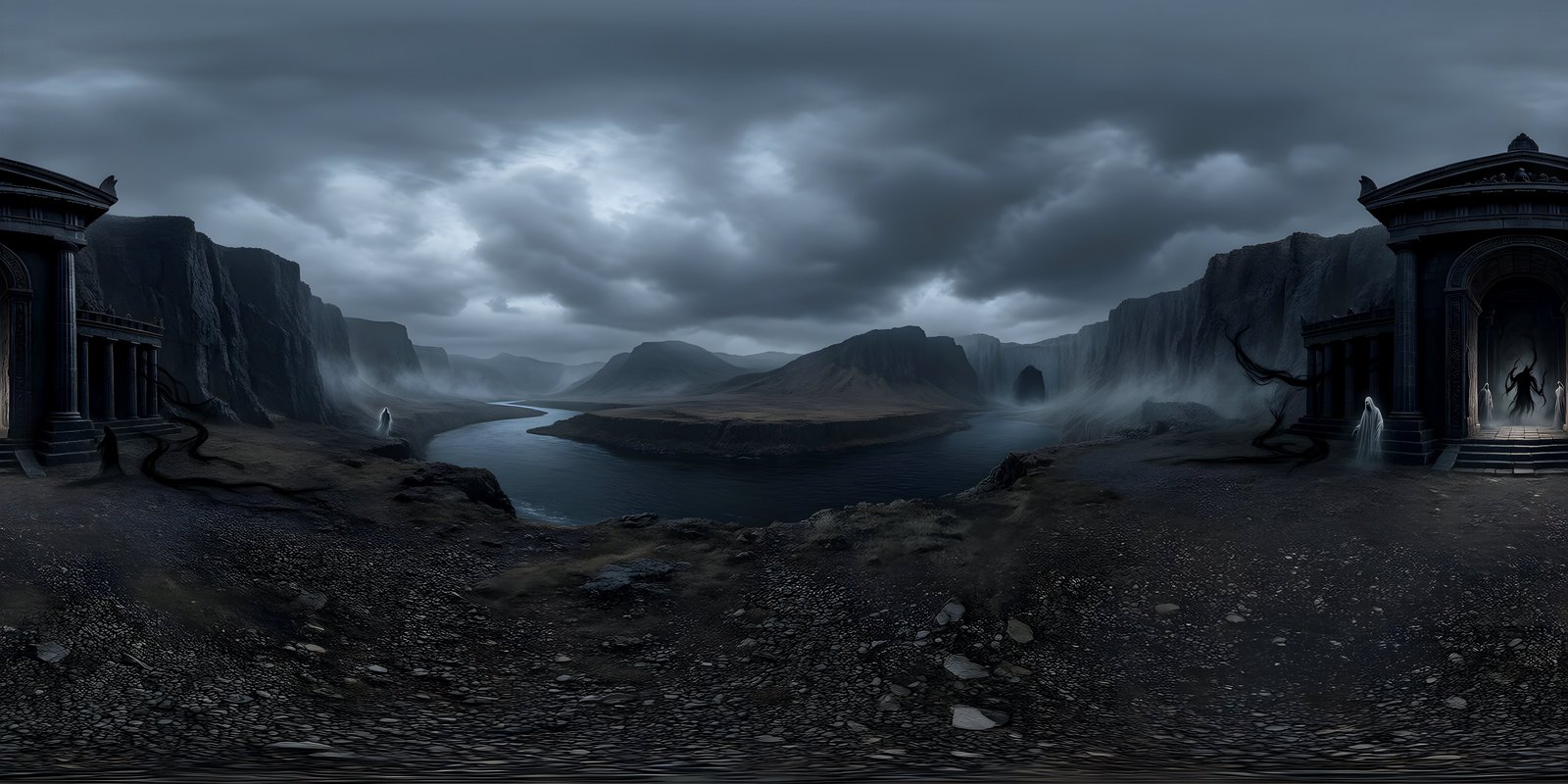
- A 360° image in equirectangular format, exactly twice as wide as it is tall. 8192 × 4096 looks sharp on large screens; 4096 × 2048 suits mobile.
- PNG or EXR. PNG for a sky that is only seen, EXR for a sky that also lights the scene. EXR vs PNG vs JPEG explains the difference.
- To know your render pipeline: check Edit › Project Settings › Graphics. If it names a URP or HDRP asset, that is your pipeline; if it is empty, you are on the Built-in pipeline.
If you do not have a world yet, WorldGen360 Studio generates one from a description or a photo, seamless at the wrap and repaired at the poles, as PNG at up to 8192 × 4096 or as linear EXR.
Method 1: the Panoramic shader (Built-in and URP)
This is the quickest route, and it uses the equirectangular image as it is.
- Import the image. Drag the file into the Project window. Select it, and in the Inspector leave Texture Type on Default and Texture Shape on 2D.
- Raise Max Size. Unity imports textures at no more than 2048 pixels by default, which throws away most of an 8K sky. Set Max Size to 8192 for an 8K image, or 4096 for a 4K one, and click Apply. The import settings are covered in more detail below.
- Create the material. Choose Assets › Create › Material and name it, for example “Sky_Harbour”.
- Choose the shader. With the material selected, open the Shader menu at the top of the Inspector and pick Skybox › Panoramic.
- Assign the image. Drag the texture into the Spherical (HDR) slot.
- Set the mapping. Set Mapping to Latitude Longitude Layout and Image Type to 360. The other options are for six-sided nets and 180° images.
- Apply it to the scene. Open Window › Rendering › Lighting, go to the Environment tab, and drag the material into Skybox Material.
The sky appears in the Scene and Game views straight away. Three material properties are worth knowing:
| Property | What it does | Tip |
|---|---|---|
| Rotation | Turns the sky around the vertical axis, in degrees | Turn it until the sun or a landmark sits where your level needs it |
| Exposure | Brightens or darkens the sky | Match the sky to your scene’s lighting, rather than editing the image |
| Tint Color | Tints the sky without changing the texture | Leave it at mid grey unless you want a colour shift |
To give one camera a different sky, for a menu scene or a cutscene, add a Skybox component to that camera and drag a material into its Custom Skybox property. It overrides the scene’s sky for that camera only.
Method 2: a cubemap
Unity can also convert the equirectangular image into a cubemap when it imports it. A cubemap is the shape graphics cards sample most naturally, it removes the thin line some projects see where a panoramic image wraps, and it is the form HDRP needs.
- Change the import shape. Select the image and set Texture Shape to Cube.
- Set the mapping. Leave Mapping on Auto, which reads a 2:1 image as latitude-longitude, or choose Latitude Longitude (Cylindrical) to be sure. Leave Convolution Type on None for a visible sky.
- Set the size. Max Size now sets the size of each cube face. An 8192 × 4096 image has 2,048 pixels across each 90° of the horizon, so faces of 2048 keep its detail at the horizon. Click Apply.
- Create a material with the Skybox › Cubemap shader and drag the texture into its Cubemap (HDR) slot. It has the same Tint Color, Exposure and Rotation as the panoramic shader.
- Assign it as the Skybox Material in the Lighting window, exactly as before.
Which to use? The panoramic shader is simpler and keeps the image as you made it. The cubemap is sampled more efficiently, spends its pixels more evenly, with less waste at the poles, and avoids the wrap line when mipmaps are on. For most games either is fine; if you see the line, switch to the cubemap.
Import settings: size, compression and mipmaps
- Max Size. The single most common reason for a blurry Unity sky is the default of 2048. Set it to the image’s real size. You can set a lower size per platform in the platform override tabs, for example 4096 for Android.
- Compression. Uncompressed, an 8K sky takes 128 MB of memory. Compressed, it takes a quarter of that or less. Skies are smooth gradients, which low-quality compression turns into bands, so choose High Quality, or set a high-quality format in the platform overrides: BC7 on desktop, ASTC on mobile and standalone VR. EXR skies use Unity’s HDR formats, BC6H on desktop.
- Mipmaps. Under Advanced, Generate Mipmaps creates the smaller copies that stop distant detail shimmering. They add about a third to the memory. On a panoramic sky they can also cause a thin vertical line where the image wraps; if you see one, turn mipmaps off for that texture or use the cubemap method.
The Inspector shows the resulting memory under the texture preview. Skybox texture size and memory, explained gives the figures for every size and format.
Lighting the scene from the skybox
A skybox can do more than sit in the background. The same Environment tab controls how it lights the scene:
- Environment Lighting › Source: Skybox takes the ambient light from the sky’s colours, so the shaded side of a building picks up blue from a clear sky or orange from a sunset. Intensity Multiplier sets how strong it is.
- Environment Reflections › Source: Skybox makes shiny surfaces reflect the sky. Resolution sets how detailed the reflection is, and Intensity Multiplier how strongly it shows.
- Sun Source links a directional light to the sky. Point that light the same way as the sun in the image and match its colour, so shadows and sky agree. Sky lighting is soft by nature; crisp shadows need the directional light.
- Reflection Probes placed in the level capture local reflections, including the sky, for areas the global reflection does not suit, such as interiors.
After changing the sky, click Generate Lighting at the bottom of the Lighting window if the ambient light or reflections have not updated. For lighting, the sky’s format matters: in a PNG the sun is clipped to white, so it lights no more strongly than pale cloud, while an EXR keeps it bright and gives the light a direction.
HDRP: an HDRI Sky in a Volume
The High Definition Render Pipeline does not use skybox materials. Its sky comes from a Volume instead:
- Import the image as a cubemap, with Texture Shape set to Cube, as in Method 2.
- Select a Volume, or create one with GameObject › Volume › Global Volume and give it a profile.
- Add the sky. In the Inspector, choose Add Override › Sky › HDRI Sky, and assign the cubemap to its HDRI Sky property.
- Switch the sky type. In the Volume’s Visual Environment override, set Sky type to HDRI Sky. Add the Visual Environment override first if the profile does not have one.
- Set the brightness. Intensity Mode offers Exposure, Multiplier or Lux. Lux is the easiest to reason about for daylight: it sets how much light the sky delivers to the ground. Turn the sky with Rotation.
HDRP lights the scene from the sky automatically. Its Update Mode controls how often the sky’s lighting is recalculated: On Changed, On Demand or Realtime. HDRP expects physically based brightness, so an EXR sky, with a directional light for the sun, gives far better results here than a PNG.
Troubleshooting
| Problem | Cause | Fix |
|---|---|---|
| The sky is blurry | Max Size left at 2048 | Raise Max Size to the image’s width, or 2048 per face for a cubemap from 8K |
| A thin vertical line in the sky | Mipmaps sampling across the wrap of a panoramic sky | Turn off Generate Mipmaps for the texture, or use the cubemap method |
| Bands in a clear sky | Low-quality compression | Use High Quality compression, BC7 or ASTC |
| The sky does not appear in the Game view | The camera clears to a solid colour | Set the camera’s Clear Flags (Built-in) or Background Type (URP) to Skybox |
| The sky shows but lighting has not changed | Old lighting data | Click Generate Lighting, and check the Environment Lighting source is Skybox |
| The sky looks upside down or squashed | Wrong mapping | Set Mapping to Latitude Longitude Layout, and Image Type to 360 |
| Nothing happens in HDRP | Skybox materials are not used | Use an HDRI Sky override on a Volume |
| The scene is far too bright or dark in HDRP | Sky intensity not set for physical lighting | Set Intensity Mode to Lux and adjust, then balance the directional light |
If your game has a stylised look, the sky needs to match it as well as fit it; stylised skyboxes covers that. The Unity page has more on making worlds for Unity projects, and the complete guide to game skyboxes covers resolution, lighting and every engine.
Frequently asked questions
How do I change the skybox in Unity?
Open Window › Rendering › Lighting, go to the Environment tab, and drag a different skybox material into Skybox Material. To change it for one camera only, add a Skybox component to that camera. To change it while the game runs, set RenderSettings.skybox from a script.
What size should a Unity skybox be?
8192 × 4096 for PC and console, and 4096 × 2048 for mobile, with Max Size raised to match. As a cubemap, that is 2048 or 1024 pixels per face.
Panoramic or cubemap: which skybox shader should I use?
Panoramic is simpler and uses the image as it is. Cubemap is more efficient and avoids the wrap line with mipmaps. Start with Panoramic and switch if you see a line; HDRP needs a cubemap either way.
Why is my Unity skybox blurry?
Almost always because Max Size is still at its default of 2048. Raise it to the image’s width and click Apply. If it is still soft, the image itself may be too small: a 4K sky looks soft on a large screen.
How do I make the skybox light my scene?
In the Lighting window’s Environment tab, set Environment Lighting and Environment Reflections to Skybox, then click Generate Lighting. Use an EXR sky for stronger, directional light, and add a directional light as the Sun Source for crisp shadows.