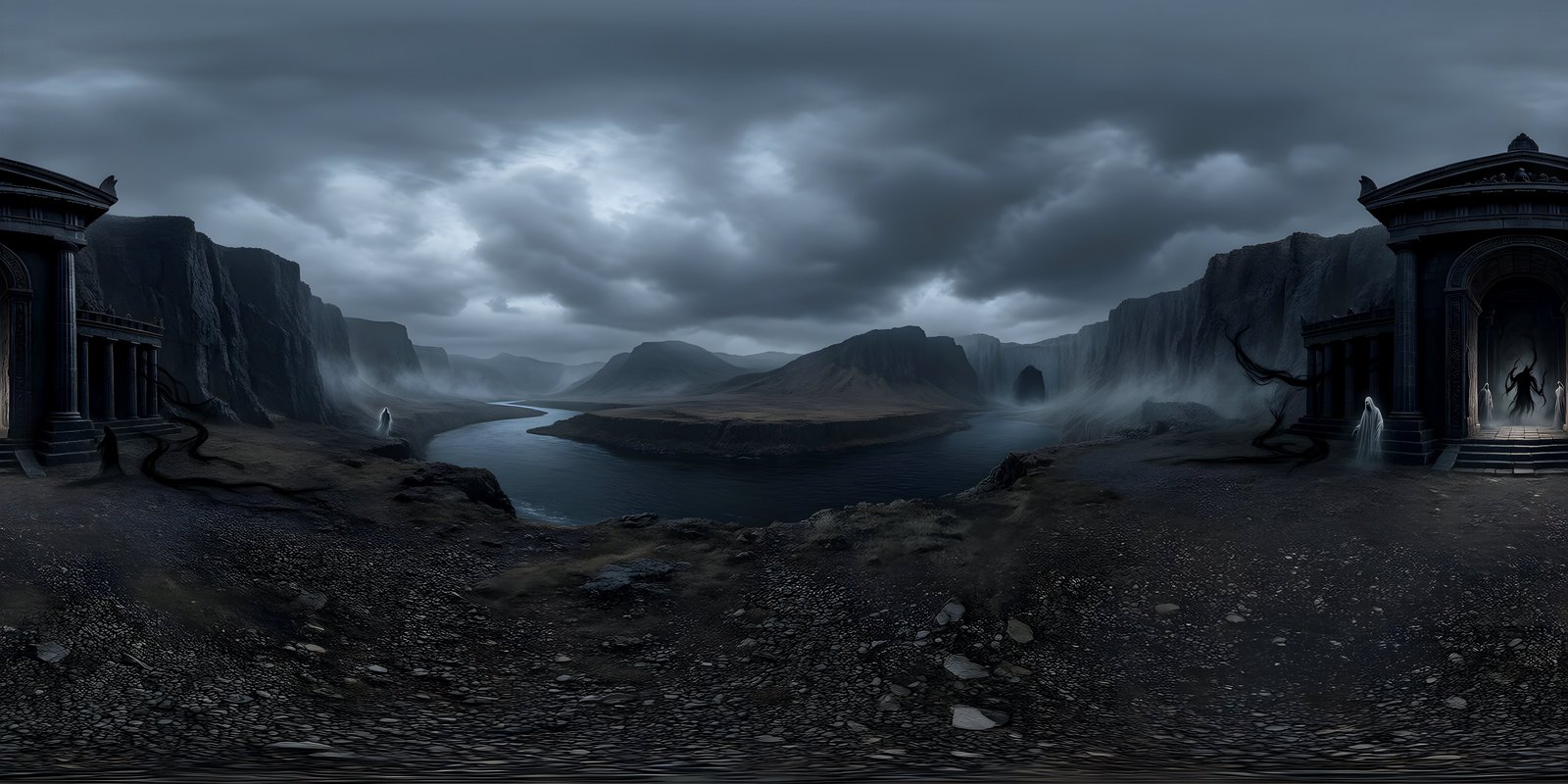
To add an HDRI in Blender, open the World properties, click the socket next to Color under Surface and choose Environment Texture, then open your 360° image. The image now surrounds the scene and lights it, in Cycles and in EEVEE. To turn it, add a Mapping node in front of the texture and change its Z rotation; to set its brightness, change the Background node’s Strength. This guide covers each step, plus showing one image to the camera while another lights the scene, and how Cycles and EEVEE differ.
Add an Environment Texture to the world
The world is everything around your scene. Its surface shader takes only a Background node, with a colour and a strength, and by default that colour is a flat grey. To light the scene with an image, feed an Environment Texture into it:
- In the Properties editor, open the World tab, the red globe icon.
- Under Surface, click the small socket button beside Color and choose Environment Texture.
- Click Open and choose your image: a 2:1 equirectangular EXR or HDR for lighting, or a PNG or JPEG for a background only.
- Switch the 3D viewport to Rendered shading to see the result, or to Material Preview with Scene World ticked in the shading options, since Material Preview otherwise shows Blender’s own studio lighting.
You can do the same in the node editor, which you will need for the next steps anyway. Open the Shading workspace, set the Shader Editor’s dropdown from Object to World, and you will see the Environment Texture feeding the Background node, which feeds the World Output. The Blender manual has a shortcut: dragging an image file into the Shader Editor while editing the world creates an Environment Texture node for you.
The node’s Projection should stay on Equirectangular, the layout of almost every 360° image; Mirror Ball is only for photos of a mirrored sphere. Its Interpolation is Linear by default; Cubic is a little smoother when the background is seen close up. Blender reads the colour space from the file, sRGB for PNG and JPEG and linear for EXR and HDR, which is what you want.
Rotate it with a Mapping node
An HDRI rarely arrives facing the right way. To put the sun where you want it, or a landmark behind your subject, rotate the world rather than the scene:
- In the World shader, add a Texture Coordinate node (Add › Input) and a Mapping node (Add › Vector).
- Connect Texture Coordinate’s Generated output to the Mapping node’s Vector input, and the Mapping node’s Vector output to the Environment Texture’s Vector input.
- Change the Mapping node’s Rotation Z. The world turns around the vertical axis as you drag the value.
With the Node Wrangler add-on enabled, selecting the Environment Texture and pressing Ctrl+T adds both nodes and connects them in one go. Leave the X and Y rotation at zero: tilting them tilts the horizon, which is almost never what you want. For architecture, turn the world until the brightest part of the sky falls across the facade you want lit, at an angle, since raking light shows texture far better than light from straight ahead.
Strength and exposure
The Background node’s Strength multiplies the world’s light. At 1.0, the image lights the scene with the values it contains. Raise it to brighten the lighting and the visible background together; lower it for a moodier scene, or when you add other lights.
If the whole render is simply too bright or too dark, change the exposure instead, in Render Properties › Color Management › Exposure. Strength changes the world relative to your other lights; exposure changes everything equally, like a camera. The View Transform in the same panel, AgX by default in recent versions, controls how very bright areas such as the sun roll off towards white.
Show a different background from the lighting
Often the image that lights a scene is not the one you want the camera to see: a studio HDRI for lighting behind a plain colour, or an EXR for lighting behind a sharper PNG of the same world. Blender handles this with the Light Path node, and the manual describes the setup:
- Make two Background nodes: one fed by the lighting image, and one fed by the image or colour the camera should see.
- Add a Mix Shader and connect the lighting Background to its first Shader input, and the visible one to its second.
- Add a Light Path node (Add › Input) and connect its Is Camera Ray output to the Mix Shader’s Fac.
- Connect the Mix Shader to the World Output’s Surface.
Rays from the camera now see the second background, and every other ray, the ones that light and reflect, sees the first. Adding Is Glossy Ray to the mix, so reflections also see the sharp image, is a common refinement. This is the Cycles recipe; EEVEE handles world lighting differently, so check the result in an EEVEE render before relying on it.
If you just want the lighting with no background at all, for compositing a render over something else, there are two simpler switches. In Render Properties › Film, tick Transparent: the world still lights the scene, and the background renders as alpha. In Cycles, you can also untick Camera under the World’s Ray Visibility panel.
One more habit saves time on real projects: keep each environment as its own world. The World properties have a selector at the top, like materials do, so you can make a new world for each HDRI, name them “Spring morning”, “Overcast” and “Dusk”, and switch the whole lighting setup with one click rather than rebuilding the nodes each time.
Cycles and EEVEE
What are Cycles and EEVEE?
Cycles and EEVEE are the two render engines Blender uses for finished images. Cycles is a path tracer: it follows rays of light as they bounce around the scene, which gives physically accurate lighting, shadows and reflections, at the cost of render time. EEVEE is a real-time engine: it draws the scene the way a game engine does, fast enough to see the result as you work, and approximates what Cycles calculates.
You choose between them in Render Properties › Render Engine, and can switch at any time, because the same world, lights and most materials work in both. A common way to work is to set a scene up in EEVEE, where every change shows at once, and render the final image in Cycles.
How each engine uses the world
Both engines light a scene from the world, but not the same way, and the difference shows most with a bright sun in the image.
| Cycles | EEVEE | |
|---|---|---|
| How the world lights the scene | Traced directly, as a light source | Stored in an internal light probe and treated as indirect light |
| Precision | Accurate, including small bright sources such as the sun | Less precise, as the manual notes |
| Sharp sun shadows | Yes, from a bright sun in an HDR image, helped by the world’s Sampling setting | Set World › Sun › Threshold to split the brightest light into a real sun light, with Use Shadow ticked |
| Key settings | World › Settings: Sampling, Map Resolution, Max Bounces | World › Light Probe › Resolution; World › Sun: Threshold, Angle, Use Shadow |
In practice: with Cycles, leave the world’s Sampling on Auto so the sun is found efficiently, which cuts noise. With EEVEE, set a Sun Threshold if an outdoor HDRI gives soft, washed-out shadows, and raise the Light Probe resolution if lighting from the world looks coarse. In either engine, adding your own Sun lamp, pointed the same way as the sun in the image, gives full control over the shadows.
Using a generated world for architectural visualisation
Stock HDRIs are photographs of somewhere else. For a scheme that needs a particular setting, a spring street, a winter park, a waterfront at dusk, WorldGen360 Studio can generate one from a description or a site photo, as linear EXR for the lighting and PNG for the view through the glass. Load the EXR as the Environment Texture, use the Light Path setup above to show the PNG to the camera, and add a Sun lamp matched to the sky. A generated world is an imagined setting rather than a measured one, so it suits concept, mood and early lighting rather than verified views. The architectural visualisation page covers the full workflow, and EXR vs PNG vs JPEG explains why the EXR matters for lighting.
Node and menu names here follow the current Blender manual. For every engine side by side, see the complete guide to game skyboxes.
WorldGen360 Studio
The setting your render needs
Describe the place, the season and the time of day, and Studio generates it as an environment map: EXR to light the scene, PNG for the view through the glass.
- Linear EXR and PNG, up to 8K
- Remix one setting into spring, winter or night
- Start from a site photo with photo reference
Frequently asked questions
How do I add an HDRI in Blender?
Open the World properties, click the socket beside Color under Surface, choose Environment Texture, and open your HDRI. It lights the scene and appears as the background in the Rendered view.
How do I rotate an HDRI in Blender?
Put a Mapping node, driven by the Generated output of a Texture Coordinate node, into the Environment Texture’s Vector input, and change the Mapping node’s Z rotation. With Node Wrangler enabled, Ctrl+T on the texture adds both nodes.
How do I hide the HDRI but keep its lighting?
Tick Film › Transparent in the Render Properties, and the background renders as transparent while the world still lights the scene. To show a different background instead, mix two Background nodes with the Light Path node’s Is Camera Ray.
Why does my HDRI look blurry in the viewport?
In Material Preview, you may be seeing Blender’s built-in studio lighting, which has its own blur setting: tick Scene World in the viewport shading options to see yours. If it is still soft, check the image’s resolution, since a 4K world looks soft when it fills the view, and try Cubic interpolation on the Environment Texture node.