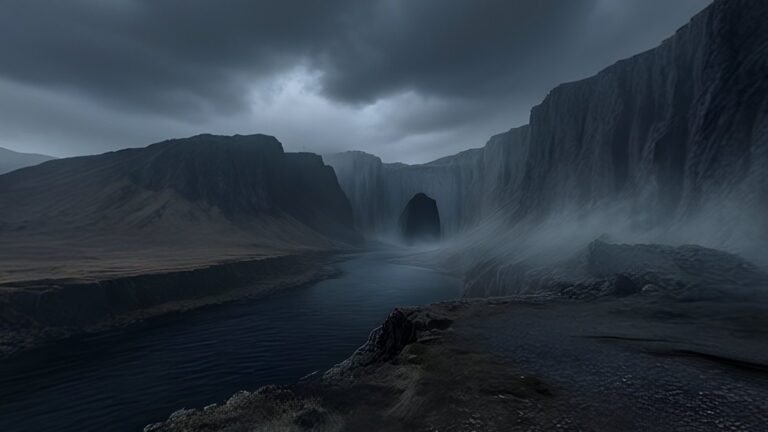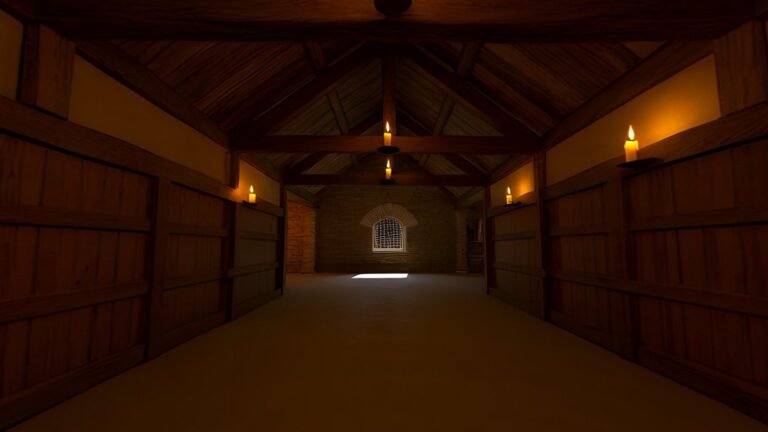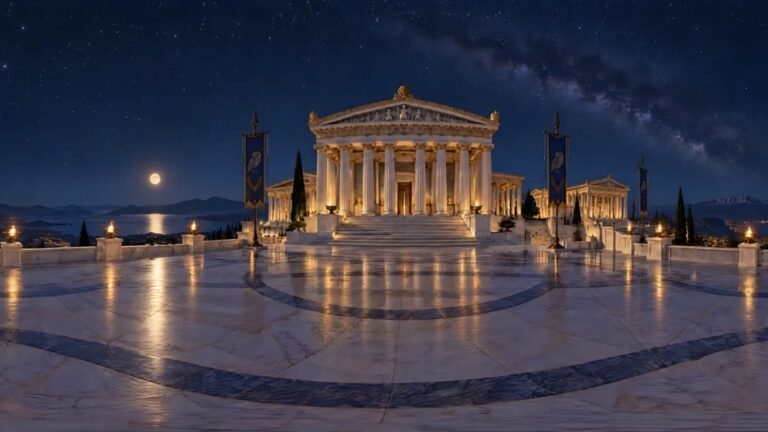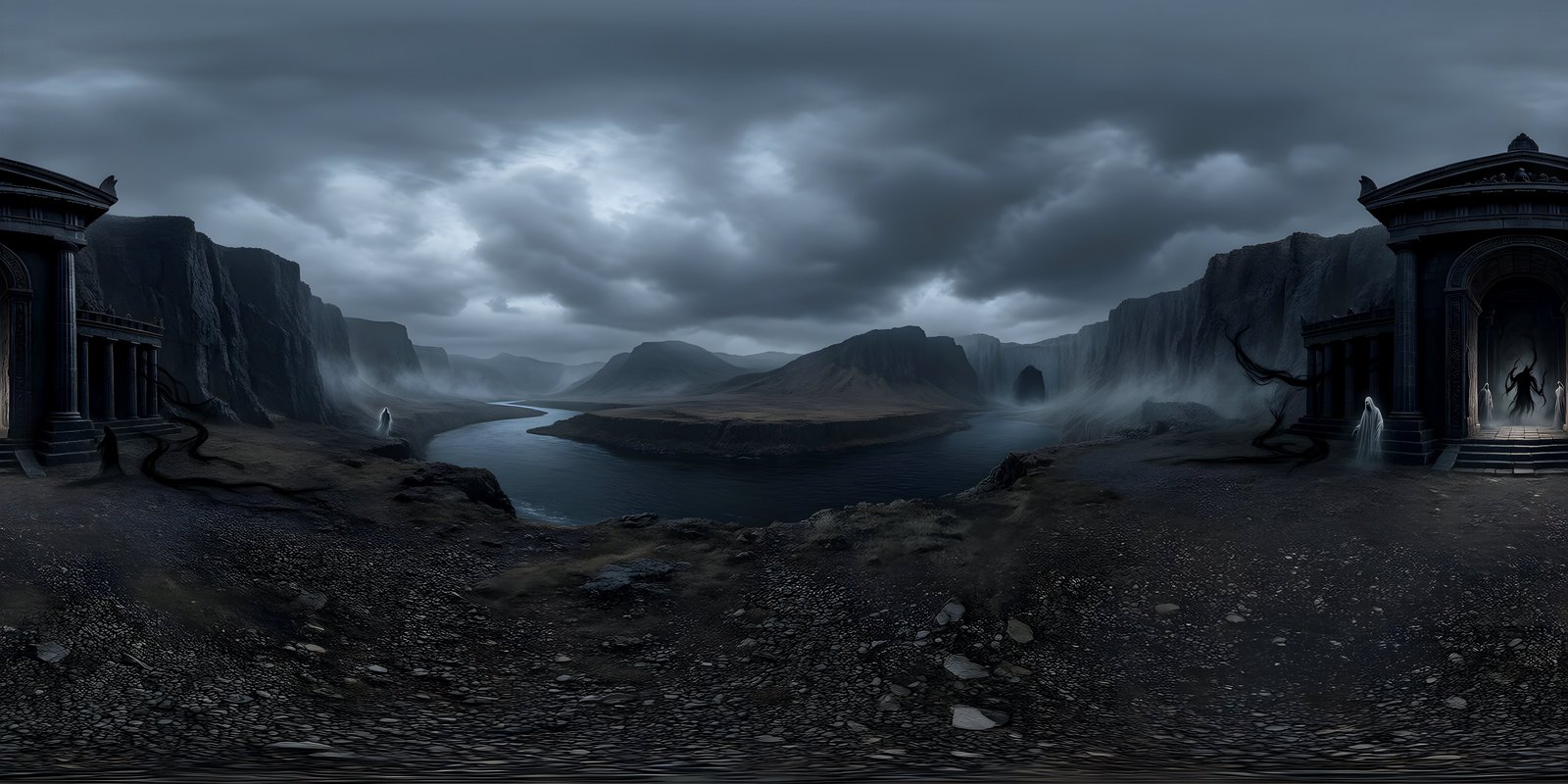
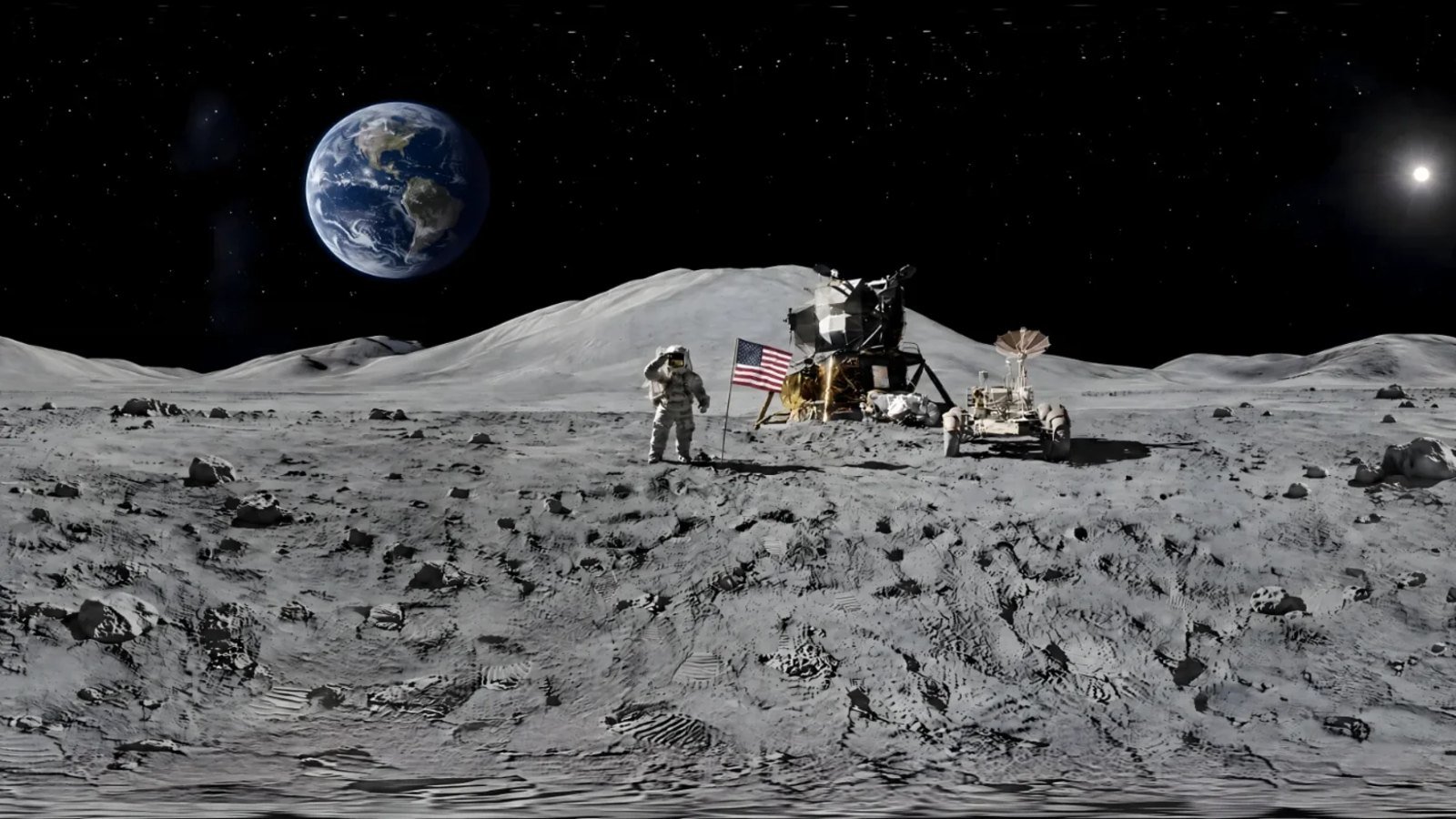
Showing a 360° image in VR with A-Frame takes three lines of code: a script tag that loads A-Frame, an <a-scene> element, and an <a-sky> element pointing at your equirectangular image. Open the page in a headset’s browser and an Enter VR button appears; press it and you are standing inside the world. The rest of this guide covers what the sky’s settings do, how to load an 8K image without a long wait, how to test on a headset, and why the page has to be served over HTTPS.
The smallest working page
A-Frame is an open-source framework for building WebXR scenes out of HTML elements, built on three.js. This is a complete page:
<!DOCTYPE html>
<html lang="en">
  <head>
    <meta charset="utf-8">
    <title>Alpine lake at dawn</title>
    <script src="https://aframe.io/releases/1.8.0/aframe.min.js"></script>
  </head>
  <body>
    <a-scene>
      <a-sky src="world-4k.jpg"></a-sky>
    </a-scene>
  </body>
</html>
Put it in a folder with your image, serve the folder from a web server, and open it. On a desktop, you can drag to look around. On a phone, you can look around by moving the phone. In a headset’s browser, the Enter VR button in the corner takes you into the world. A-Frame adds a default camera at standing eye height, about 1.6 metres, with look controls, so you do not need to add one. Version 1.8.0 was the current release when this was written; check aframe.io for a newer one.
The image must be a full 360° equirectangular image, twice as wide as it is tall. A-Frame’s documentation is clear that images need to be equirectangular to be seamless. WorldGen360 Studio generates worlds in exactly that format, with the wrap seam repaired and the poles rebuilt, which matters in a headset, where looking straight up comes naturally.
What a-sky’s attributes do
<a-sky> is a large sphere with the image painted on the inside. Its most useful attributes, with their defaults from the A-Frame documentation:
| Attribute | Default | What it does |
|---|---|---|
| src | none | The image: a URL, or a selector such as #sky pointing at an image in the asset system |
| color | #FFF | A plain colour, used when there is no image |
| radius | 500 | The size of the sphere, in metres; keep it larger than your scene |
| segments-width | 64 | How many segments go round the sphere; more gives a smoother curve |
| segments-height | 32 | How many segments go from top to bottom |
| rotation | 0 0 0 | Turns the sky; change the middle value to face a different part of the world forwards |
The sky uses a flat material, so scene lighting does not change it. To make the part of the world you want in front of the viewer at start-up, turn it with rotation="0 -90 0", adjusting the middle number in steps until it faces the right way. The segment counts rarely need changing; they shape the sphere, and do not affect how sharp the image looks.
Loading large images
In a headset, a 360° image needs to be 8192 × 4096 to look sharp, and an 8K JPEG is several megabytes that has to download and decode before anything appears. Three techniques make the wait shorter and friendlier.
Use the asset system. Images listed in <a-assets> are loaded before the scene renders, and A-Frame shows its loading screen meanwhile, a row of dots you can recolour with the loading-screen component. By default the asset system waits only 3 seconds before starting anyway; raise that with its timeout attribute, in milliseconds.
Load 4K first, then swap in 8K. Show a 4096 × 2048 version as soon as possible, then fetch the 8K version in the background and switch to it when it arrives, if the device can take a texture that large:
<a-scene loading-screen="dotsColor: #ffffff; backgroundColor: #0b0d0a">
  <a-assets timeout="30000">
    <img id="world-4k" src="world-4k.jpg">
  </a-assets>
  <a-sky id="sky" src="#world-4k" rotation="0 -90 0"></a-sky>
</a-scene>

<script>
  const scene = document.querySelector('a-scene');
  scene.addEventListener('loaded', () => {
    // Skip 8K on devices that cannot hold a texture that large.
    if (scene.renderer.capabilities.maxTextureSize < 8192) return;
    const hd = new Image();
    hd.onload = () => document.querySelector('#sky').setAttribute('src', hd.src);
    hd.src = 'world-8k.jpg';
  });
</script>
Keep the files lean. Use high-quality JPEG rather than PNG for the web: it is a fraction of the size, and the difference is invisible in a headset. Remember that a JPEG is decoded to its full size in memory, 128 MB for an 8K image, whatever it weighed on disk. 4K vs 8K 360° images explains the trade-offs, and how to add a 360° image viewer to your website covers progressive loading for ordinary web pages in more depth.
Entering VR and testing on a headset
A-Frame shows the Enter VR button automatically whenever the browser supports WebXR, including the browser built into Meta Quest headsets. Its xr-mode-ui component controls the button: you can hide it, or supply your own button in its place.
- Test on the desktop first. Check that the world loads, faces the right way and joins without a seam. A WebXR emulator extension for your desktop browser lets you try the Enter VR flow without a headset.
- Open the page on the headset. The simplest way is to host it on an HTTPS address, covered below, and type or bookmark the address in the headset’s browser. For a page on your own computer, a Quest connected by USB can reach it as localhost with
adb reverse tcp:8000 tcp:8000, if your local server runs on port 8000. - Enter VR and look around properly: straight up, straight down and all the way round, looking for seams, softness and anything that feels too close or too large.
- Check the load time on the headset’s own connection, not your desktop’s, since that is what visitors will get.
Hosting, and why the page needs HTTPS
Browsers only allow WebXR in a secure context: a page served over HTTPS, or from localhost on your own machine. Served over plain HTTP from anywhere else, the scene still loads, but the Enter VR button never appears. Any host that serves static files over HTTPS will do, including GitHub Pages and most web hosting.
If the images live on a different domain from the page, such as a storage bucket or a CDN, that server must allow cross-origin requests, because the image becomes a WebGL texture. A-Frame’s asset system sets the crossorigin attribute automatically when it detects an image on another domain, but the server still has to send the right CORS headers.
WorldGen360 Studio
A world for your WebXR scene
Studio generates seamless equirectangular worlds that drop straight into a-sky. Save a high-quality JPEG copy for the web and keep the PNG as your master.
- Seamless 2:1 worlds, no stitching
- 4K on the free plan, 8K on paid plans
- Private share links for quick previews
Common problems
| Problem | Likely cause | Fix |
|---|---|---|
| The sky stays white or black | A wrong image path, or an image on another domain without CORS headers | Check the path, and the browser console for a CORS error |
| No Enter VR button in the headset | The page is served over plain HTTP | Serve it over HTTPS |
| The world looks stretched or doubled | The image is not a full 2:1 equirectangular panorama | Use a true 360° image, twice as wide as it is tall |
| A visible line where the image wraps | The left and right edges of the image do not match | Repair the seam, or use a world generated seamless |
| A long blank wait before anything appears | One very large image loaded on its own | Load 4K first and swap in 8K, as above |
| The wrong part of the world faces forwards | The image’s centre is not where you want the viewer to start | Change the middle value of the sky’s rotation |
Next steps: a gallery
One world is a start; several make an experience. A-Frame’s documentation includes a guide to building a 360° image gallery, where clickable thumbnails swap the sky between worlds, with a short fade between them. Keep the fade: switching the whole world instantly is jarring in a headset, and a brief fade to black is far more comfortable. VR comfort explains why. Studio’s Remix is useful here too: it makes versions of one world at different times of day or seasons that stay recognisably the same place, so a gallery can walk a visitor through dawn, noon and night.
The VR environments page covers making worlds for headsets, and the complete guide to VR environments covers design, comfort and performance.
Frequently asked questions
How do I show a 360° image in A-Frame?
Load A-Frame with a script tag, add an <a-scene>, and put an <a-sky> inside it with its src set to your equirectangular image. Serve the page over HTTPS so headsets can enter VR.
Why does my a-sky image look blurry?
Usually because the image is too small for a headset, which magnifies the view far more than a screen. Use 8192 × 4096. Heavy JPEG compression also softens it; the segment counts do not affect sharpness.
Does A-Frame work on a Meta Quest?
Yes. The Quest’s built-in browser supports WebXR, so an A-Frame page served over HTTPS shows the Enter VR button and runs in the headset with no app to install.
Can A-Frame load an 8K panorama?
On devices that support 8192-pixel textures, yes. Check maxTextureSize before loading it, show a 4K version first, and remember it takes 128 MB of memory once decoded.