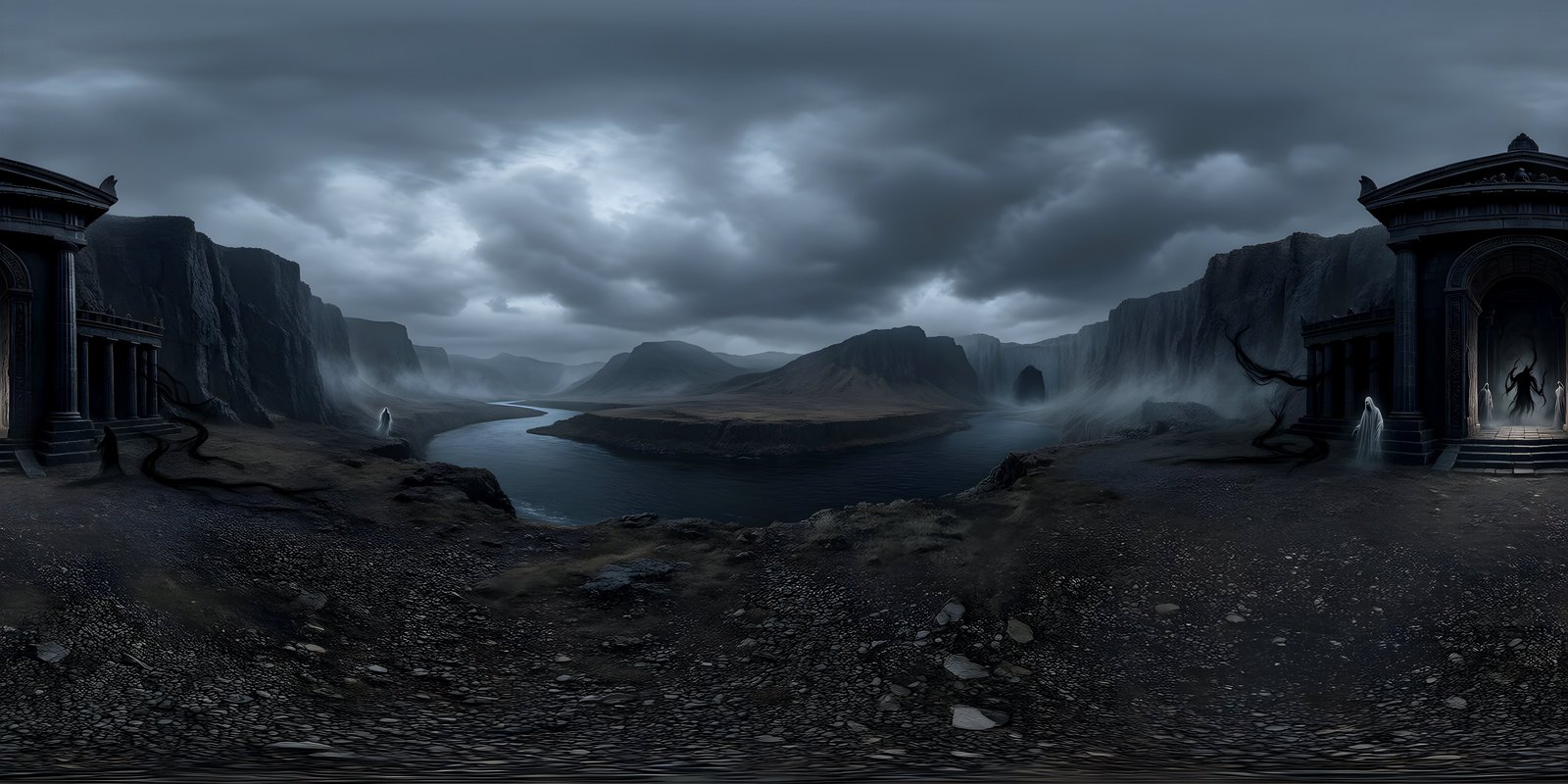

To show a 360° image on a website, you need a viewer: a small script that wraps the flat equirectangular image onto the inside of a sphere and lets visitors drag, swipe or zoom to look around. You can write one in a few dozen lines of three.js, use A-Frame, drop in an open-source library, embed from a hosting service, or install a WordPress plugin. Whichever you choose, the details that decide how it feels are the same: show a 4K image quickly and stream the 8K version afterwards, let phones scroll past it, and give it a text alternative.
What a 360° viewer does
Every web 360° viewer does the same basic job with WebGL, the browser’s 3D graphics interface. It builds a sphere around a virtual camera, paints the equirectangular image onto the inside of it, and turns the camera as the visitor drags. Zooming does not enlarge the image; it narrows the camera’s field of view, so less of the sphere fills the screen.
Around that core, viewers differ in what else they handle: touch and pinch gestures, keyboard controls, full screen, looking around by tilting a phone, entering VR on a headset, hotspots that link one scene to the next, and, most important for large images, how they load. A simple viewer loads one image and shows nothing until it arrives. A good one shows progress, then something useful quickly, then the full detail.
Your options
| Option | Good for | Trade-offs |
|---|---|---|
| Your own viewer in three.js | Full control over look, loading and behaviour | You write and maintain the controls, loading and accessibility yourself |
| A-Frame | VR on the web: one HTML element shows the image, and headsets get an Enter VR button | A whole 3D framework for one image; less control over loading |
| Open-source viewer libraries, such as Pannellum, Photo Sphere Viewer or Marzipano | Tours with hotspots, multiple scenes, ready-made controls | Each has its own options and limits; check how it handles very large images |
| Hosted 360° platforms | Upload and embed with no code at all | Your images live on someone else’s service, usually inside an iframe, often with their branding |
| WordPress plugins | Adding a viewer to posts and pages without code | Quality varies; many wrap one of the libraries above, so check which and how it loads |
If you want to see how little a basic viewer takes, here is one in three.js. It fills an element with the id pano and lets the visitor drag to look around. It uses ES modules, so load three.js through an import map or a bundler.
import * as THREE from 'three';

const box = document.querySelector('#pano');
const renderer = new THREE.WebGLRenderer({ antialias: true });
renderer.setPixelRatio(Math.min(devicePixelRatio, 2));
renderer.setSize(box.clientWidth, box.clientHeight);
renderer.domElement.style.touchAction = 'none';
box.appendChild(renderer.domElement);

const scene = new THREE.Scene();
const camera = new THREE.PerspectiveCamera(75, box.clientWidth / box.clientHeight, 0.1, 100);

const sphere = new THREE.SphereGeometry(10, 64, 32);
sphere.scale(-1, 1, 1); // turn the sphere inside out, so the image faces inwards
const texture = await new THREE.TextureLoader().loadAsync('world-4k.jpg');
texture.colorSpace = THREE.SRGBColorSpace;
scene.add(new THREE.Mesh(sphere, new THREE.MeshBasicMaterial({ map: texture })));

let yaw = 0, pitch = 0;
renderer.domElement.addEventListener('pointermove', (e) => {
  if (e.buttons !== 1) return;
  yaw -= e.movementX * 0.003;
  pitch = Math.max(-1.5, Math.min(1.5, pitch + e.movementY * 0.003));
});

renderer.setAnimationLoop(() => {
  const c = Math.cos(pitch);
  camera.lookAt(Math.sin(yaw) * c, Math.sin(pitch), -Math.cos(yaw) * c);
  renderer.render(scene, camera);
});
That is a working start, not a finished viewer: it has no zoom, no keyboard support, no resizing and no progress bar. The rest of this guide covers what to add. For a scene that also works in a VR headset, how to show a 360° image in VR with A-Frame walks through the A-Frame route.
Loading large panoramas without the wait
360° images are big. An 8192 × 4096 JPEG is typically several megabytes, and on a connection of 8 megabits a second, each megabyte takes about a second to arrive. Loading the full-resolution image first means staring at a blank box. The viewers on this site use a pattern that works well, and it suits any viewer:
- Show a small preview at once. A thumbnail a few hundred pixels wide, blurred, fills the box while the real image loads.
- Load a 4K image first, with a progress bar. Fetching the file as a stream lets the page report real progress rather than an endless spinner.
- Stream the 8K version behind it. Once the 4K view is up, load the higher-resolution image in the background and cross-fade to it when it is ready. The visitor is already looking around by then.
- Be careful on phones. A phone screen rarely benefits from 8K until someone zooms in, and decoding 8K takes 128 MB of memory. Wait for a zoom before fetching it.
- Check the device’s limit. WebGL reports the largest texture a device accepts; in three.js it is
renderer.capabilities.maxTextureSize. Never send an 8K image to a device that reports 4,096. - Load viewers lower down the page only when they come near the screen, with an IntersectionObserver, so a page of several worlds does not download them all at once.
Export web copies as high-quality JPEG, not PNG, which can be several times larger for no visible gain on a screen. 4K vs 8K 360° images explains which sizes are worth serving.

WorldGen360 Studio
Share a world without building a viewer
Every Studio world opens in its own 360° viewer, and a private link lets anyone look around it in a browser with no account needed. Revoke the link whenever you like.
- Private, revocable share links
- 360° video export for social posts and store pages
- Seamless worlds that wrap cleanly in any viewer
Making it work on phones
On a touchscreen, a viewer has to take over dragging so the visitor can look around, usually with the CSS touch-action: none. The catch is that the same swipe is how people scroll the page. A viewer that fills the whole screen traps them: every swipe turns the world, and there is nowhere left to scroll from. Three ways round it:
- Keep the viewer shorter than the screen, so there is always page to swipe on above or below it.
- Handle only sideways drags inside the viewer, with
touch-action: pan-y, so vertical swipes still scroll the page. Looking up and down then comes from a second finger or buttons. - Show a “tap to explore” overlay, and only start capturing touches after the tap.
Add pinch to zoom, and a full-screen button for anyone who wants to be surrounded. Looking around by tilting the phone is a nice extra, but on iPhones the page has to ask permission for motion sensors, and that request must come from a tap, so offer it as a button rather than switching it on automatically.
Accessibility
- Describe the scene. A canvas means nothing to a screen reader. Give the viewer
role="img"and anaria-labelthat says what the place is, or put a description in the text beside it. - Support the keyboard. Make the viewer focusable, turn it with the arrow keys and zoom with plus and minus, and show a visible focus outline.
- Respect reduced motion. If a viewer turns slowly on its own, stop it when the device asks for reduced motion, through the
prefers-reduced-motionmedia query. - Report loading. A progress bar with
role="progressbar"and a current value tells assistive technology what is happening.
Search engines and 360° images
Search engines do not look around inside a viewer. They index the image file like any other image and understand it from what surrounds it, so give them something to read:
- Words on the page that describe the place: a heading, a caption and a paragraph, not just the viewer on its own.
- An ordinary image with alt text, such as a flat preview or a cropped view, in the page’s HTML. Images drawn by script into a canvas are easy for crawlers to miss.
- A descriptive file name, such as
alpine-lake-dawn-360.jpgrather thanIMG_0412.jpg. - An image sitemap listing the panorama files, if they are loaded by script and would not otherwise be found.
To see the loading pattern in action, open any world in the gallery. Every world made in WorldGen360 Studio also comes with its own 360° viewer and a private share link, for showing a world to someone before you build a viewer at all. The complete guide to 360-degree images covers the images themselves.
Frequently asked questions
How do I embed a 360° photo on my website?
Add a 360° viewer to the page and point it at the equirectangular image: a three.js script, an A-Frame scene, an open-source library such as Pannellum, or an embed code from a 360° hosting platform. The image must be a full 2:1 equirectangular panorama to wrap without a gap.
Can I show a 360° image in WordPress?
Yes. Install a 360° viewer plugin and add its block or shortcode to a post, or add a library’s script and markup through a Custom HTML block. Check how the plugin loads large images before you rely on it for 8K.
Why is my 360° viewer slow to load?
Usually because it waits for one very large image before showing anything. Serve a 4K JPEG first, stream the 8K version afterwards, show a blurred thumbnail and a progress bar meanwhile, and only load viewers when they come near the screen.
Does Google index 360° images?
It indexes the image file as an ordinary image, without looking around inside it. The text on the page, the alt text of a regular image, a descriptive file name and an image sitemap are what help it understand and rank the page.