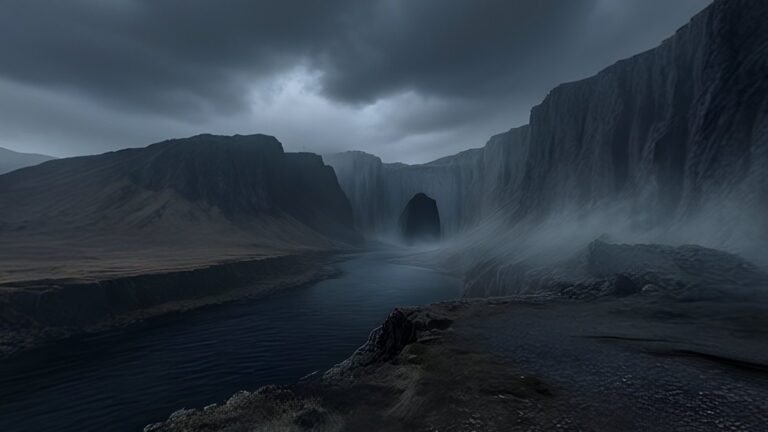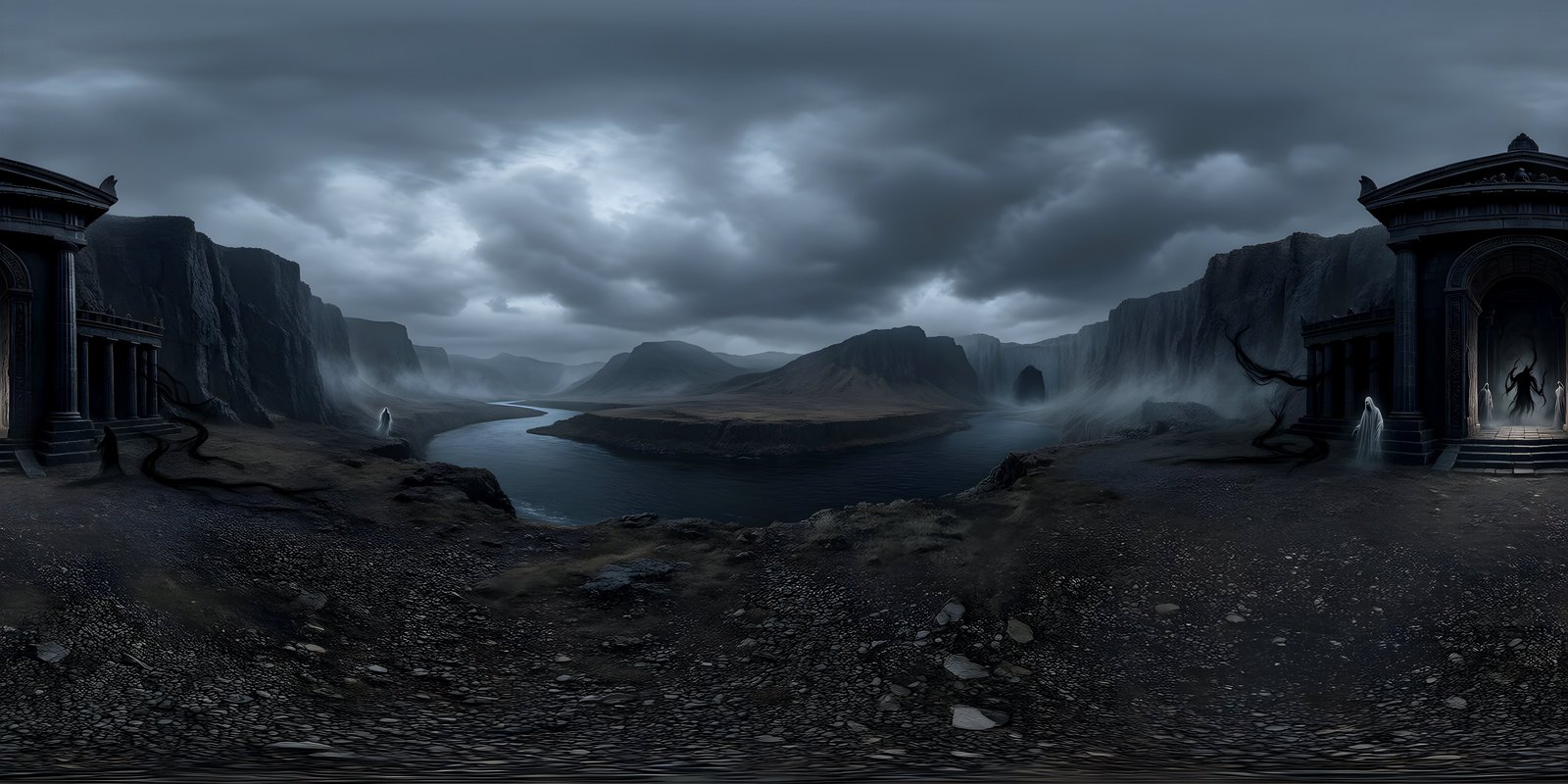

For a VR headset, a 360° image should be 8192 × 4096. That gives about 22.8 pixels per degree, close to the 25 pixels per degree Meta quotes for Quest 3, so the image looks nearly as sharp as the display can show. A 4096 × 2048 image gives only half that and looks visibly soft in the lenses. Going beyond 8K adds detail most current headsets cannot show, at four times the memory.
Pixels per degree: comparing images with headsets
Resolution in VR is easiest to think about in pixels per degree: how many pixels describe each degree of what you see. It works for both sides of the comparison.
For a 360° image, the maths is simple. The image’s width covers the full 360° of the horizon, so its pixels per degree are its width divided by 360:
| Image | Pixels per degree |
|---|---|
| 4096 × 2048 (4K) | about 11.4 |
| 8192 × 4096 (8K) | about 22.8 |
| 16384 × 8192 (16K) | about 45.5 |
For a headset, pixels per degree describe how finely its displays and lenses divide your view. A headset’s lenses spread each display’s pixels across a very wide field of view, so even a display with millions of pixels ends up with a modest number per degree. That figure is the ceiling: an image with fewer pixels per degree than the headset looks soft, because each pixel of the image is spread across several pixels of the display. An image with more has detail the headset cannot show.
A monitor is far more forgiving. It sits at arm’s length and covers a small part of your view, so a 360° viewer on a monitor magnifies the image much less than a headset does. That is why a world that looks crisp in a browser can look soft the moment you put a headset on. For screens rather than headsets, see 4K vs 8K 360° images.
Current headsets
| Headset | Display resolution | Pixels per degree | Source |
|---|---|---|---|
| Meta Quest 3 | 2064 × 2208 per eye | 25 | Meta’s published specifications |
| Meta Quest 3S | 1832 × 1920 per eye | 20 | Meta’s published specifications |
| Apple Vision Pro | 23 million pixels across two displays | Not published | Apple’s technical specifications |
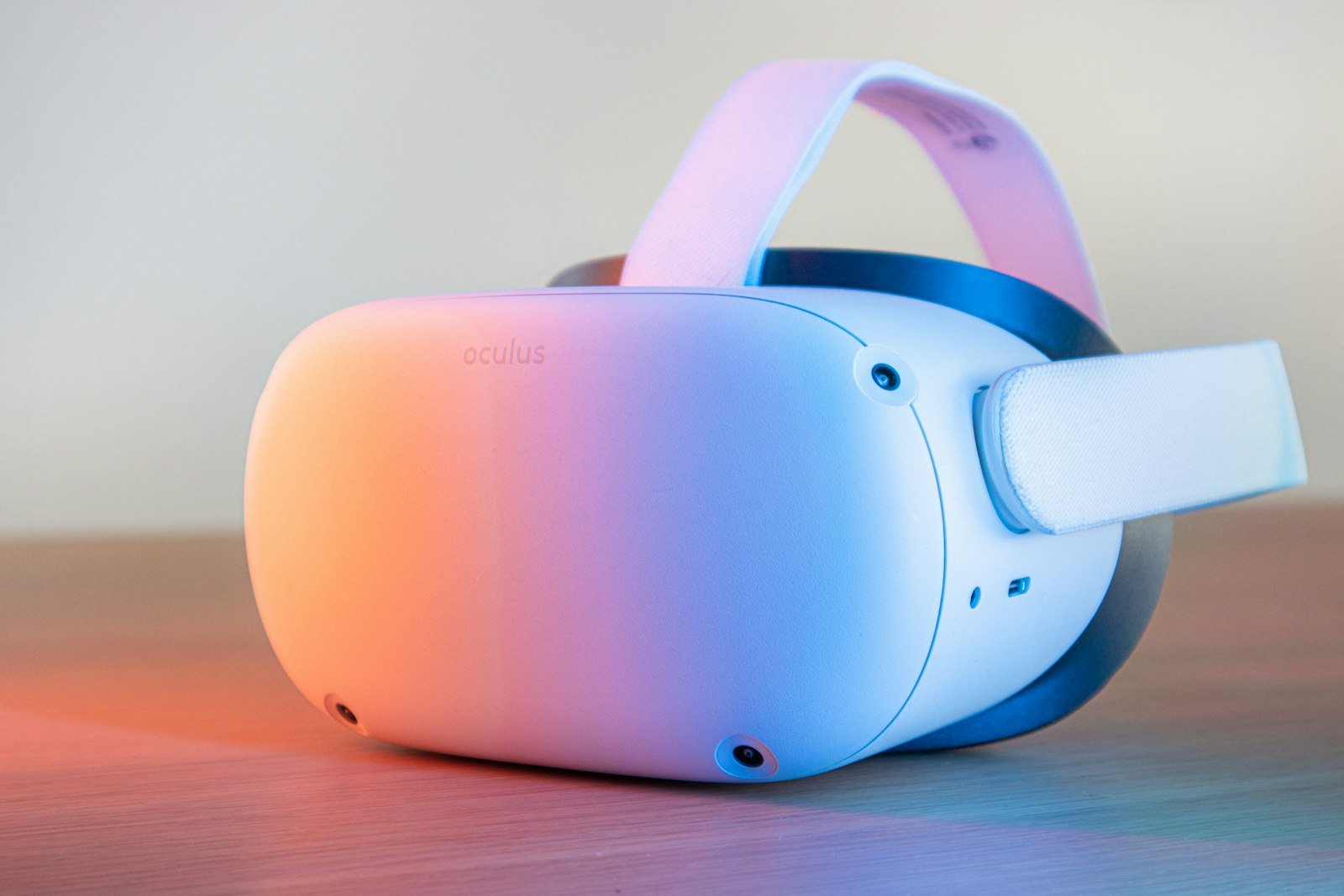
Set against the images, the figures tell a clear story. On Quest 3, a 4K world reaches under half the display’s detail, and an 8K world about nine tenths of it. On Quest 3S, 8K already exceeds what the display shows, so 8K is plenty there. Apple does not publish a pixels-per-degree figure for Vision Pro, but with about 11.5 million pixels per eye against Quest 3’s 4.6 million, its displays are considerably denser, which suggests that even 8K falls short of what they can show.
Treat headset figures as best cases. Lenses are sharpest in the centre and softer towards the edges. And an app does not draw the image straight onto the display: it renders the view into its own buffer first, and a low render resolution softens even an 8K world. In games and apps, check the render resolution before blaming the image.
What 4K, 8K and 16K look like in a headset
- 4K looks soft, as if the world were slightly out of focus. Broad shapes and colours are fine, so night skies, fog, open water and plain cloud can get away with it. Anything fine, such as distant windows, foliage, railings or lettering, smears.
- 8K looks close to the headset’s own sharpness. Fine detail holds up at the horizon, and the world reads as a place rather than a picture of one. It is the practical target for anything seen in a headset.
- 16K shows little visible gain over 8K on a headset around 25 pixels per degree, because the display cannot show the extra detail. It costs four times the memory of 8K, and many devices cannot load a texture that large at all.
Content matters as much as numbers. A hazy seascape at 4K can look almost the same as at 8K; a city skyline cannot. The only reliable test is to build the scene twice, once with each size, and look at the busiest part of the horizon in the headset.
Getting the most from an 8K world
An 8K file does not guarantee 8K in the headset. Detail is lost at several points between the file and the display, and each is easy to check:
- Import size. Engines often cap textures on import, Unity at 2048 by default. Make sure the sky is imported at its full width.
- Compression quality. Low-quality compression turns smooth skies into bands. Use ASTC 6×6 or 4×4 rather than larger blocks.
- Render resolution. If the app renders each eye at a low resolution, the world is softened before it reaches the display. Check the eye buffer settings in your engine’s XR options.
- The source. An image upscaled to 8K from something smaller has 8K pixels but not 8K detail. Start from a world generated or captured at full size.
Memory and performance on standalone headsets
Standalone headsets run everything on a mobile chip. Quest 3, for example, has 8 GB of memory shared between the system, the app and every texture, and it must draw two views at 72 frames a second or more. A 360° world is one of the cheapest things to draw, a single texture with no geometry or lighting to calculate, so its cost is almost all memory:
- An 8192 × 4096 world takes 128 MB uncompressed, 32 MB with ASTC 4×4 and about 14 MB with ASTC 6×6, plus about a third for mipmaps.
- In a WebXR page, a JPEG is decoded to its full uncompressed size, 128 MB for 8K, before it reaches the graphics card, so load a 4K version first.
Compressed, an 8K world is affordable for most projects: it is the one texture that is always on screen. Where memory is genuinely tight, keep the 8K master and build with a 4K copy. Skybox texture size and memory, explained has the full table, and Meta’s OVR Metrics Tool shows frame rate and GPU use on the headset while the app runs, which settles whether a larger sky costs you anything.
WorldGen360 Studio
Worlds made for headsets
Studio generates worlds at up to 8192 × 4096 with the poles rebuilt, so looking straight up in a headset holds together as well as looking around.
- 8K worlds on paid plans
- Seam healed and poles rebuilt
- A quality report on every world
Recommendations
| Use | Resolution | Notes |
|---|---|---|
| Quest 3, Quest 3S and similar standalone headsets | 8192 × 4096 | Compress with ASTC 6×6, or 4×4 if the sky bands |
| Headsets with denser displays | 8192 × 4096 at least | 8K is the floor here, not the ceiling |
| WebXR in a headset browser | 4096 × 2048 first, then 8192 × 4096 | Show the 4K version quickly, swap in 8K when it loads |
| 360° photo apps on a headset | 8192 × 4096 JPEG | Check the app’s maximum image size |
| Dark, hazy or distant scenes | 4096 × 2048 may do | Test both sizes in the headset |
| Stereo 360° | 8192 × 8192, top and bottom | Each eye gets a full 8192 × 4096 image; see mono vs stereo |
WorldGen360 Studio generates worlds at up to 8192 × 4096, seamless at the wrap and rebuilt at the poles, which matters more in a headset than anywhere else, since looking straight up is so natural. The VR environments page covers making worlds for headsets, and the complete guide to VR environments covers design, comfort and delivery.
Frequently asked questions
What resolution should a 360° image be for a Quest 3?
8192 × 4096. That gives about 22.8 pixels per degree against the 25 Meta quotes for Quest 3, close to the most the headset can show. A 4096 × 2048 image gives under half that and looks soft.
Is 8K enough for VR?
For Quest 3 and Quest 3S, yes: it is close to or beyond what their displays show. For headsets with much denser displays, 8K is the minimum rather than the ceiling, though it still looks far better than 4K.
What does pixels per degree mean?
It is how many pixels describe each degree of your view. For a 360° image, it is the width divided by 360. For a headset, it is how finely the displays and lenses divide your field of view. When the image’s figure is lower than the headset’s, the image looks soft.
Why do 360° photos look blurry in a VR headset?
Usually because they have too few pixels per degree: a headset magnifies the view far more than a screen does. Other causes are a texture capped below its full size on import, heavy compression, a low app render resolution, or looking through the edge of the lens rather than its centre.